Some PDFs come with password protection. Every time you open one, you have to type the password. Sharing it with others? Annoying for them too. You know the password — so why not just remove it?
Unlocking is not cracking. This tool does one simple thing: you provide the password you already know, it strips the protection, and gives you a clean PDF that opens without any password. Don’t know the password? Nothing can help you there.
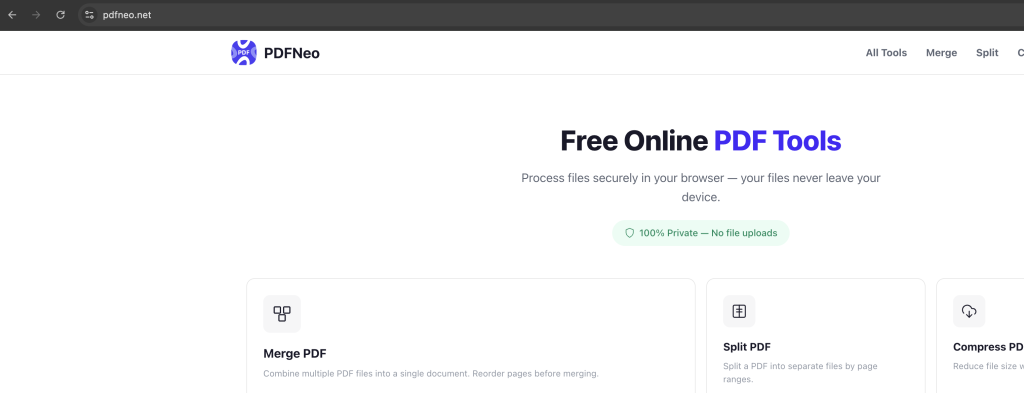
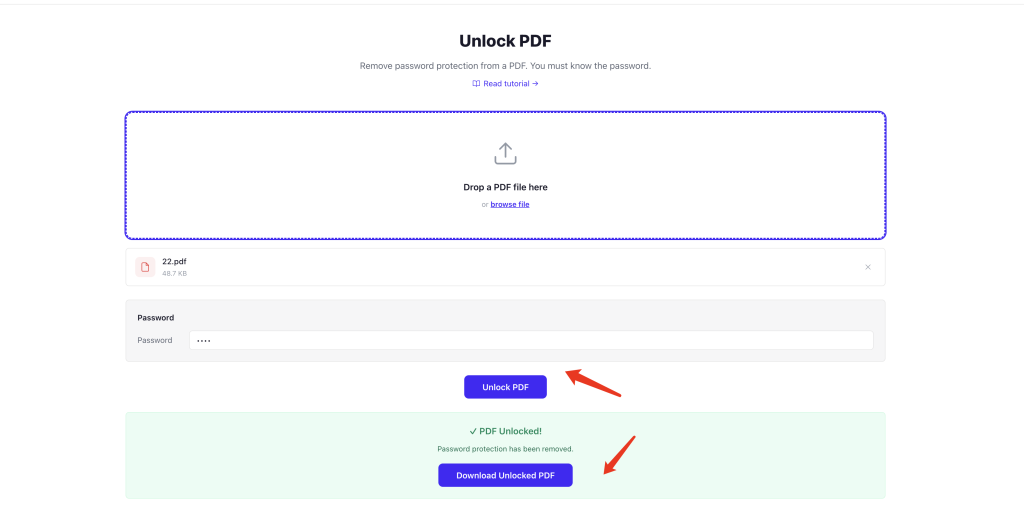
Use PDFNeo Unlock PDF. Three steps:
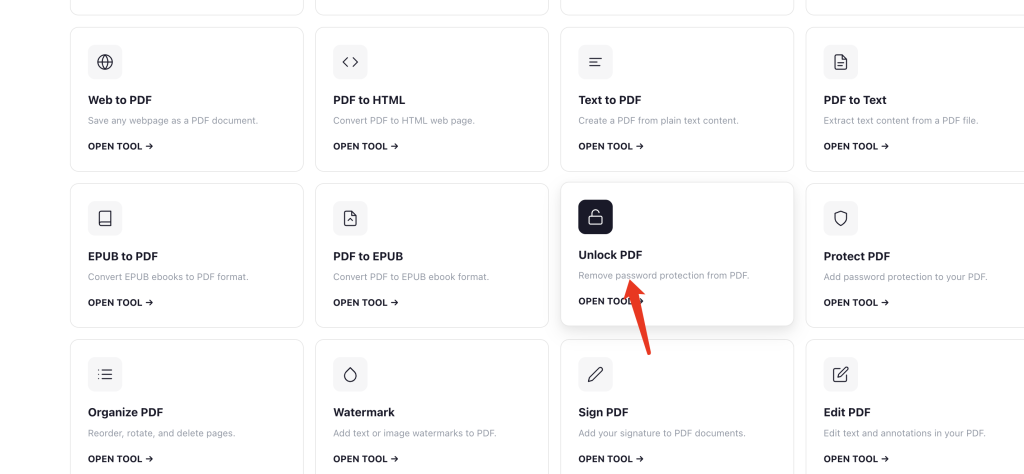
1. Upload the file
Open PDFNeo Unlock PDF. Drag in your password-protected PDF, or click to browse.
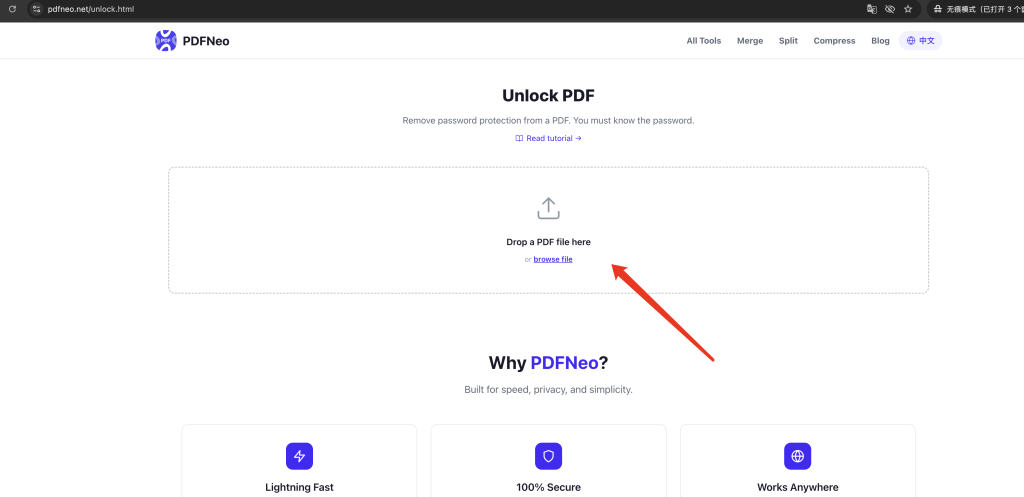
2. Enter the password
Type the PDF’s password in the input field. This is the password you already know — not something you’re guessing.
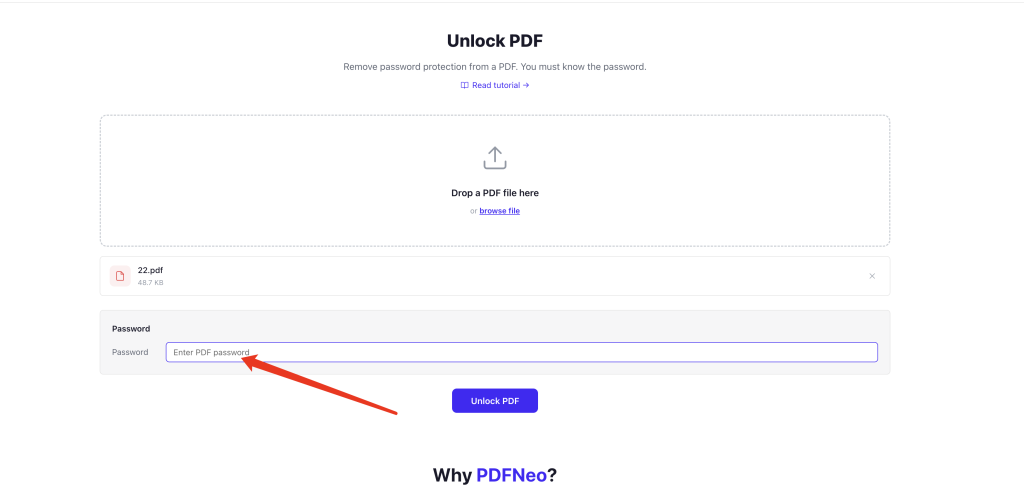
3. Click Unlock, download
Click “Unlock PDF” — done in seconds. The downloaded PDF has no password. Open it, share it, do whatever.
When you’d actually need this
Someone sent you an encrypted PDF and you’re tired of entering the password every time — unlock it once, never type it again.
You password-protected a PDF yourself but don’t need the protection anymore — remove it and move on.
A platform won’t accept password-protected files — unlock first, then upload.
Sharing a file with your team and nobody wants to deal with passwords — send them the unlocked version.
Unlocking vs. cracking — not the same thing
Let’s be clear: unlocking means you already know the password and just want to remove it. Cracking means breaking in without knowing the password — that’s a different thing entirely, and this tool can’t do it. Nor should it.
So the prerequisite is simple: you need to know the password. If you don’t, ask the person who set it.
Privacy
Everything happens in your browser. The PDF never leaves your device. The password is verified locally — nobody can see what you type. Close the tab and it’s like nothing happened.
Open PDFNeo Unlock PDF, upload, enter password, download. That simple.
More tools
- Compress PDF — File too big? Shrink it
- Merge PDF — Combine multiple PDFs into one
- Split PDF — Split one PDF into several
- Rotate PDF — Fix page orientation
- Delete PDF Pages — Remove pages you don’t need