Scanned books, sheet music, and comics are often scanned with two pages side by side — fine on a desktop, but the text is way too small on a phone. PDFNeo’s crop tool splits each page down the middle, turning two-page spreads into single pages for a much better mobile reading experience.
What Is Spread Cropping?
Spread scanning means laying a book flat and scanning both left and right pages together into one image. The result: each PDF page contains two pages of content, often with a curved spine shadow in the middle.
Cropping is straightforward: split each page vertically down the center. The left half and right half each become independent pages. An N-page PDF becomes 2N pages, with each page containing only one page of content.
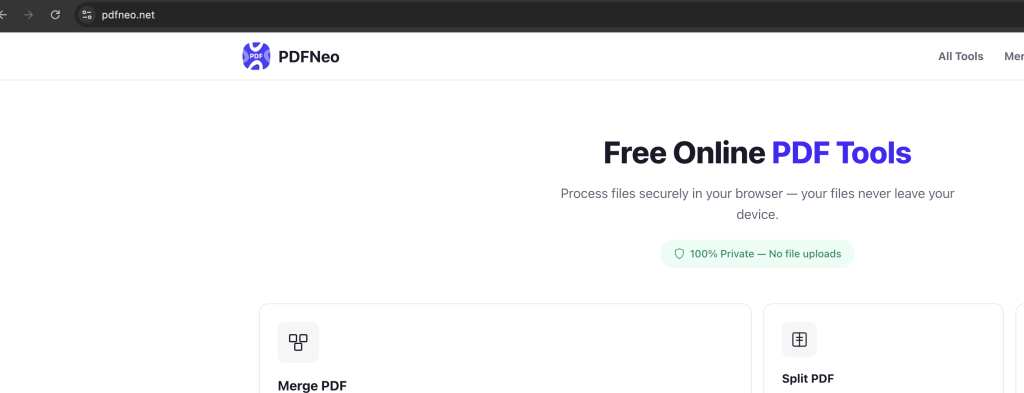
How to Crop PDF Pages with PDFNeo
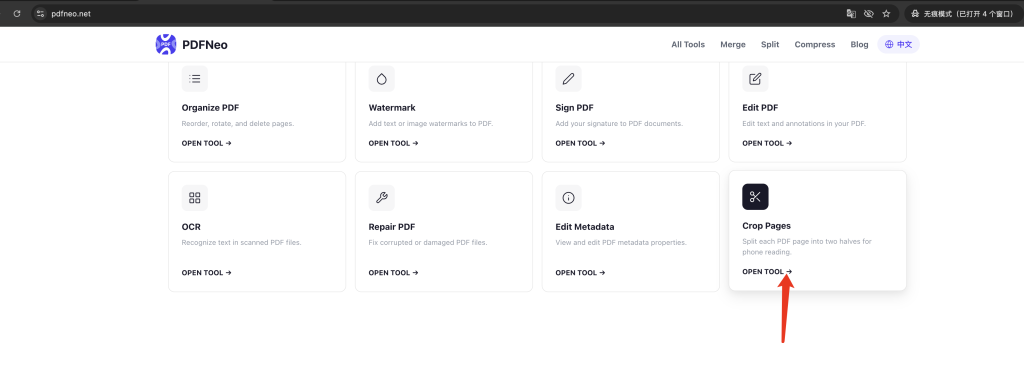
Step 1: Open the Crop Tool
Go to PDFNeo Crop PDF Pages. No signup or software installation required.
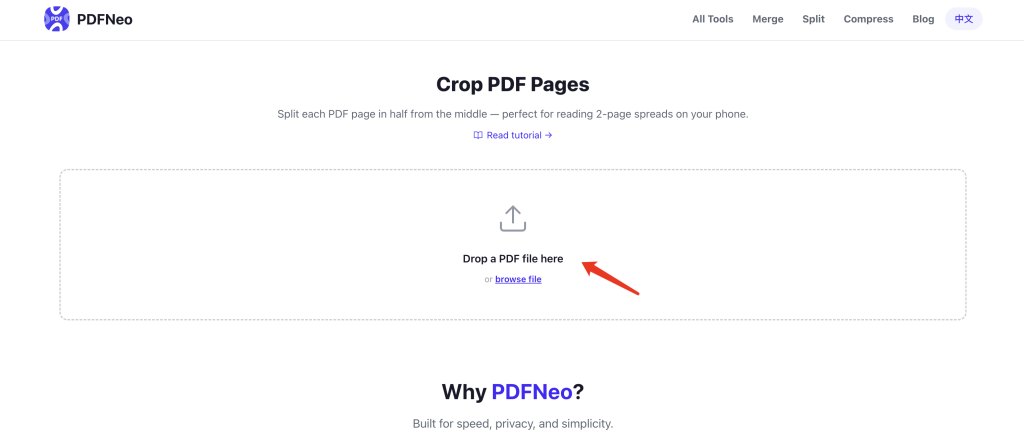
Step 2: Upload Your PDF
Click the upload area to select a file, or drag and drop a PDF directly. The tool automatically reads page dimensions and shows a preview after upload.
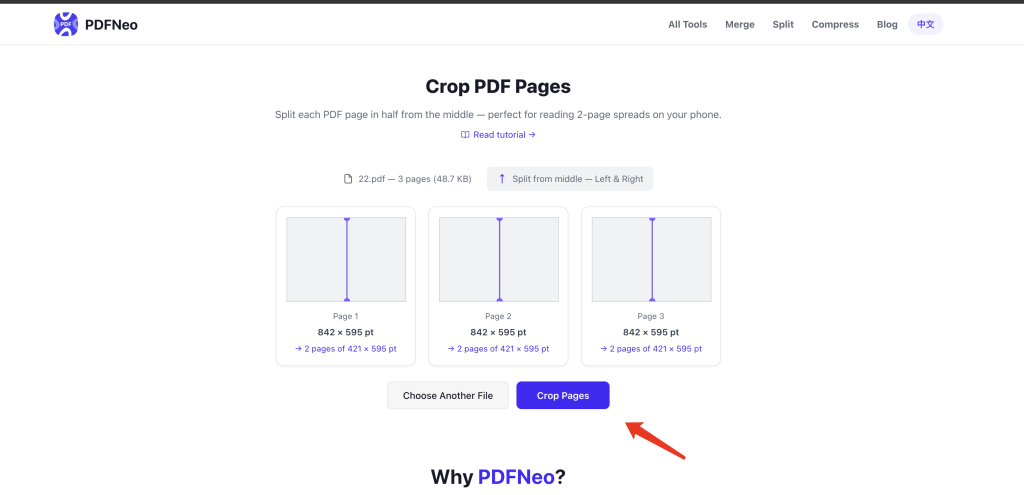
Step 3: Review the Crop Preview
The preview displays each page’s dimensions and the resulting half-page sizes. A red line marks the crop position. Confirm everything looks correct.
Step 4: Start Cropping
Click the “Crop Pages” button. The tool processes each page:
- Every page is split into two independent pages (left and right halves)
- Both halves retain the original resolution and content quality
- A new PDF is generated automatically after all pages are processed
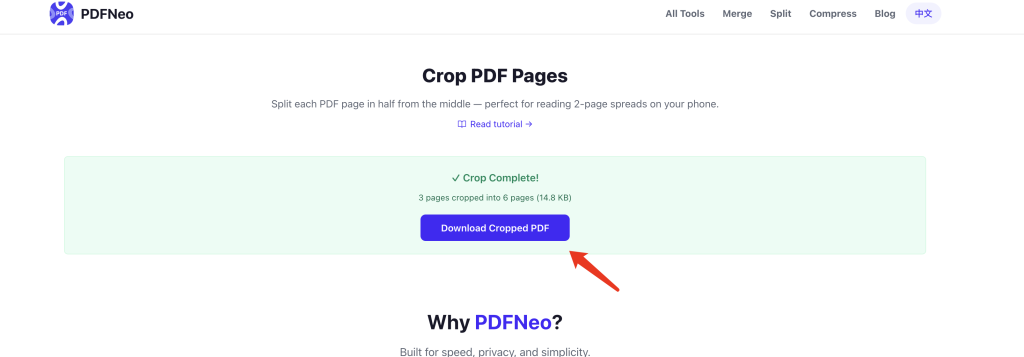
Step 5: Download the Cropped File
Download the new PDF once cropping is complete. The default filename is cropped.pdf — your original file stays untouched.
What Changes After Cropping?
- Page count doubles: N pages become 2N pages
- Each page is half as wide: From full spread width to single-page width
- Content unchanged: Resolution and clarity are fully preserved — only the page boundaries change
- File size: May increase slightly due to additional PDF page objects
Best Use Cases for Cropping
Reading Scanned Books
The most common use case. Two-page spreads are unreadable on phones — cropping makes each page full-width with larger text.
Sheet Music Page Turns
Sheet music is often laid out across spreads. Cropping creates single pages for more natural page turns while playing.
Manga and Art Books
Cropping two-page manga spreads gives one panel per page, making for a better reading experience.
Academic Papers with Two-Column Layouts
Scanned two-column papers become easier to annotate and read when each column is its own page.
When NOT to Crop
- Single-page scanned PDFs (cropping cuts content in half)
- Spreads with full-bleed cross-page images (cropping slices the image)
- Asymmetric layouts (left and right pages with different widths — center crop will be off-center)
If your PDF is already single-page scanned, you don’t need this tool.
What to Check Before Cropping
- Confirm it’s a spread scan: Open the PDF and verify each page contains two pages of content
- Check for cross-page images: Large images spanning both pages will be cut in half
- Back up the original: Cropping generates a new file without modifying the original, but backups are always good practice
Why Use PDFNeo for PDF Cropping?
- Auto-detect page dimensions: Page sizes and crop previews display instantly after upload
- Completely free: No usage limits, no file size restrictions
- Privacy first: All processing happens locally in your browser — your files never leave your device
- No registration: Open and use instantly, no email or account needed
- Batch processing: Crop all pages at once, no need to process individually
Frequently Asked Questions
The crop position seems off — what can I do?
Currently, cropping always splits at the exact center. If the spine is off-center due to scanning misalignment, try rotating the page first to correct the alignment.
Will cropping make the text blurry?
No. Cropping only changes page boundaries — the original resolution and image quality are fully preserved. It’s like cutting a piece of paper in half with scissors: the text on it doesn’t get blurry.
Can I crop only specific pages?
The current version crops all pages. If you only need certain pages cropped, use the split tool to extract those pages first, crop them, then merge everything back together.
What are the dimensions after cropping?
Width is half the original page width, height stays the same. For example, a Letter-size page (612×792 pt) becomes two pages of 306×792 pt each.
Does it work with landscape PDFs?
Yes. Landscape PDFs are still split vertically down the middle — left half and right half.
More PDF Tools
- Split PDF – Extract specific pages from a PDF
- Rotate PDF – Fix crooked scanned pages
- Merge PDF – Combine multiple PDFs into one
- Organize PDF – Delete and reorder PDF pages
- OCR PDF – Extract text from scanned documents