You downloaded a PDF and the pages are out of order. Some are rotated wrong. A few pages you don’t even need. You don’t want to jump between three different tools — you just want to get it done in one place.
PDFNeo Organize PDF does exactly that. Drag to reorder, click to rotate, click to delete — all in a single tool. No switching back and forth.
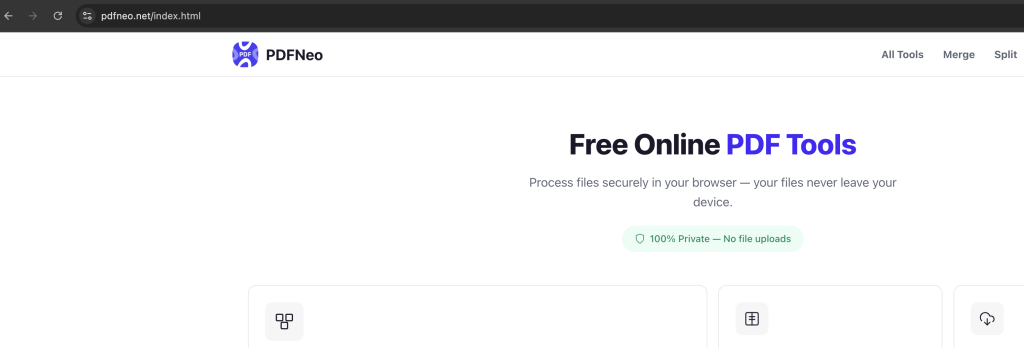
How to organize your PDF pages
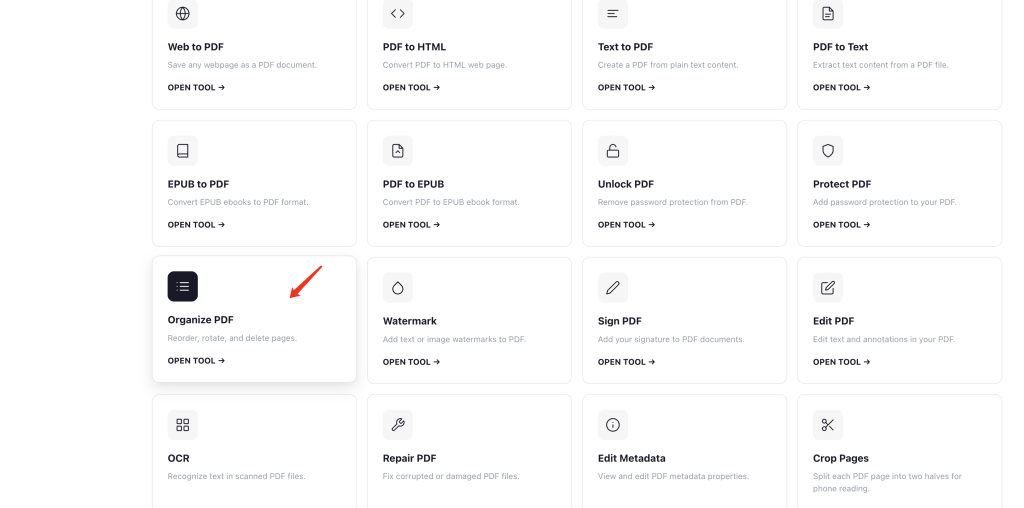
1. Open the tool and upload your file
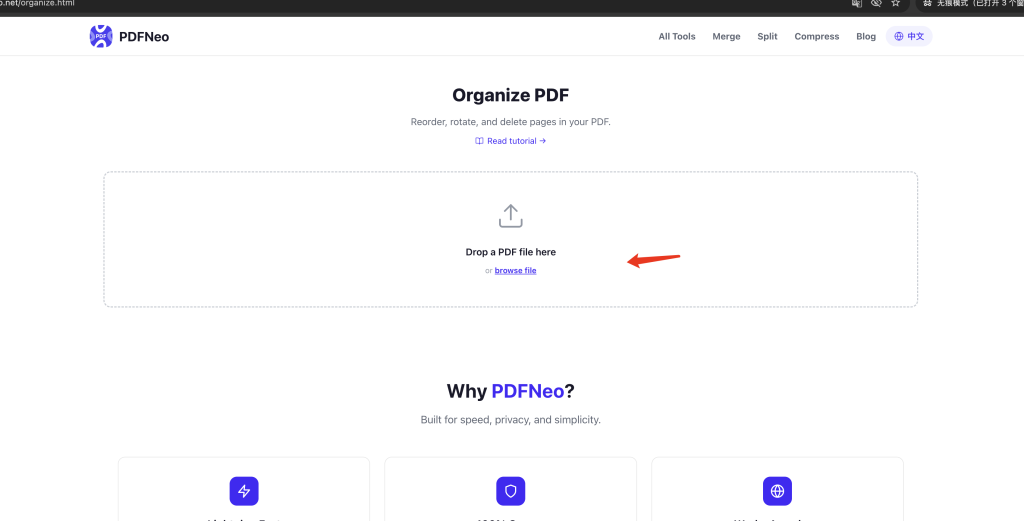
Go to PDFNeo Organize PDF. Drag in your PDF or click to browse. Once uploaded, all pages appear as thumbnails.
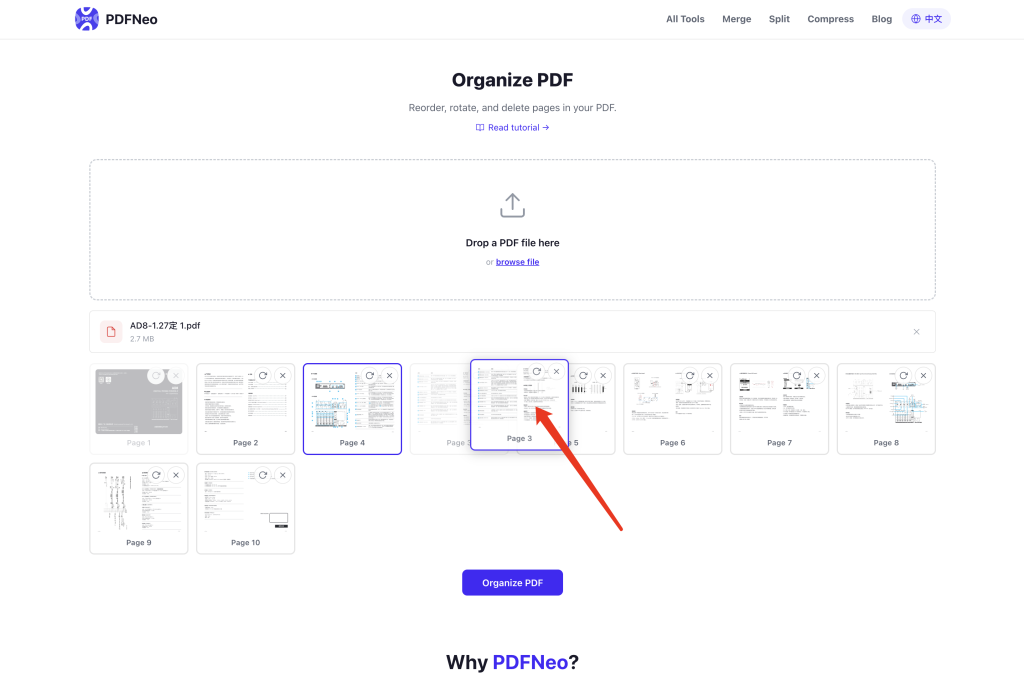
2. Drag to reorder
Grab a page thumbnail and drop it where you want it. Page 5 should be page 1? Just drag it there. Need to rearrange several pages? Drag them one by one with real-time preview.
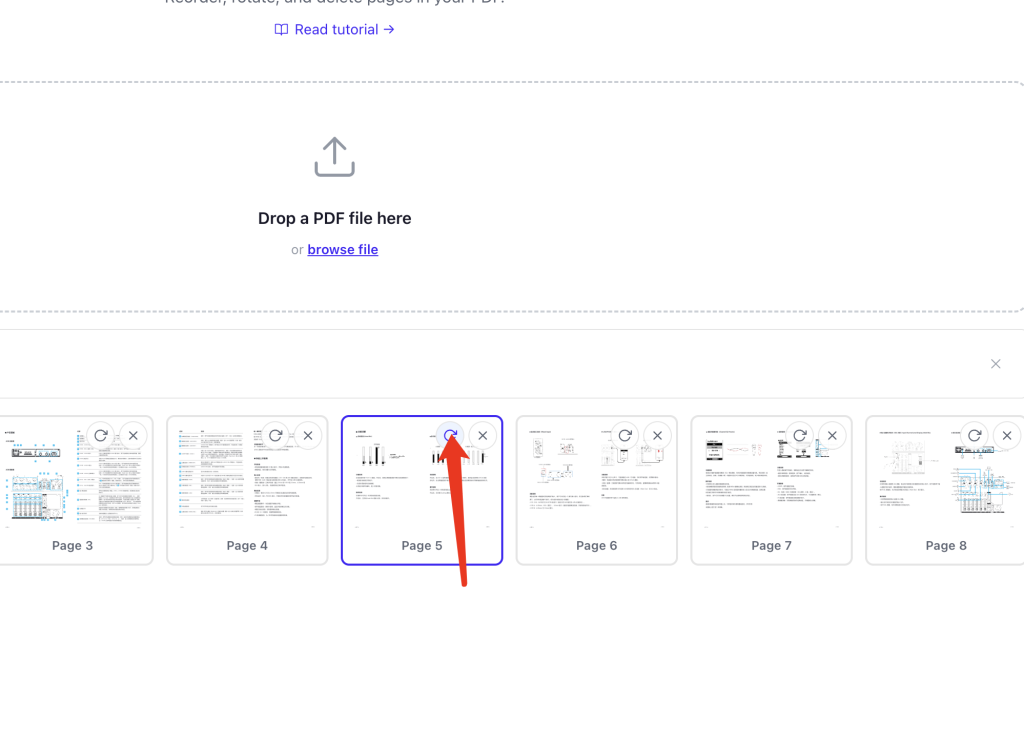
3. Rotate pages
A page is sideways? Click the rotate button on the thumbnail — it turns 90° clockwise. Click again for another 90°. Get it right and move on.
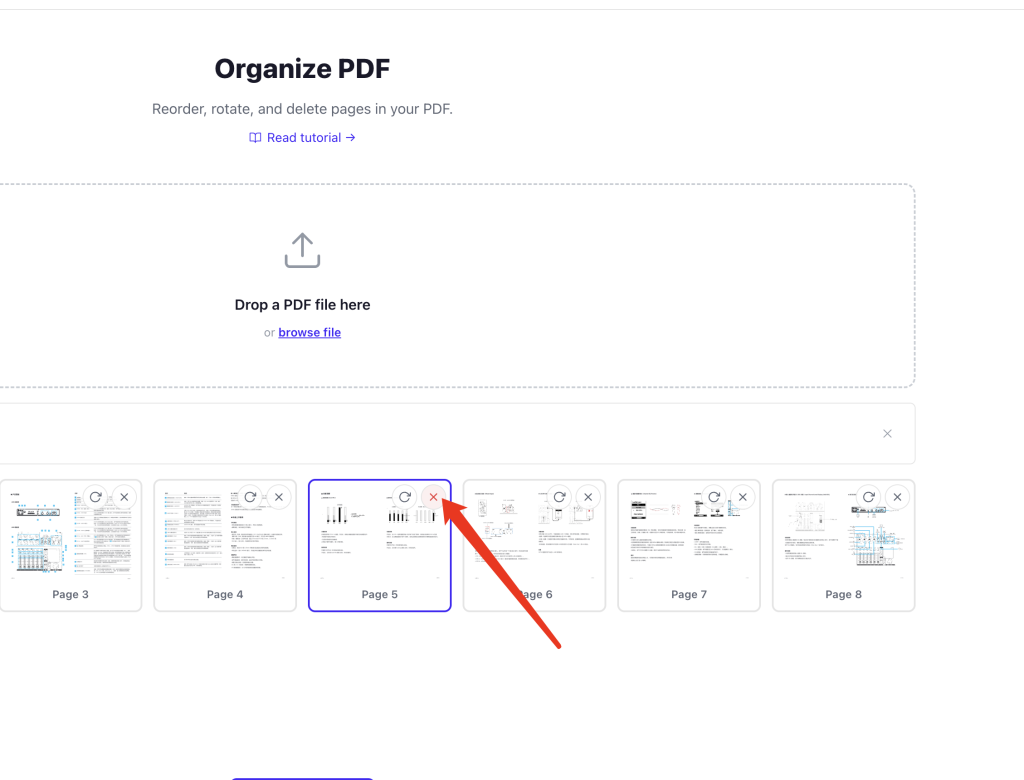
4. Delete pages you don’t need
Some pages are unnecessary? Click the delete button on the thumbnail. The page goes gray to show it’s marked for deletion. Changed your mind? Click again to bring it back.
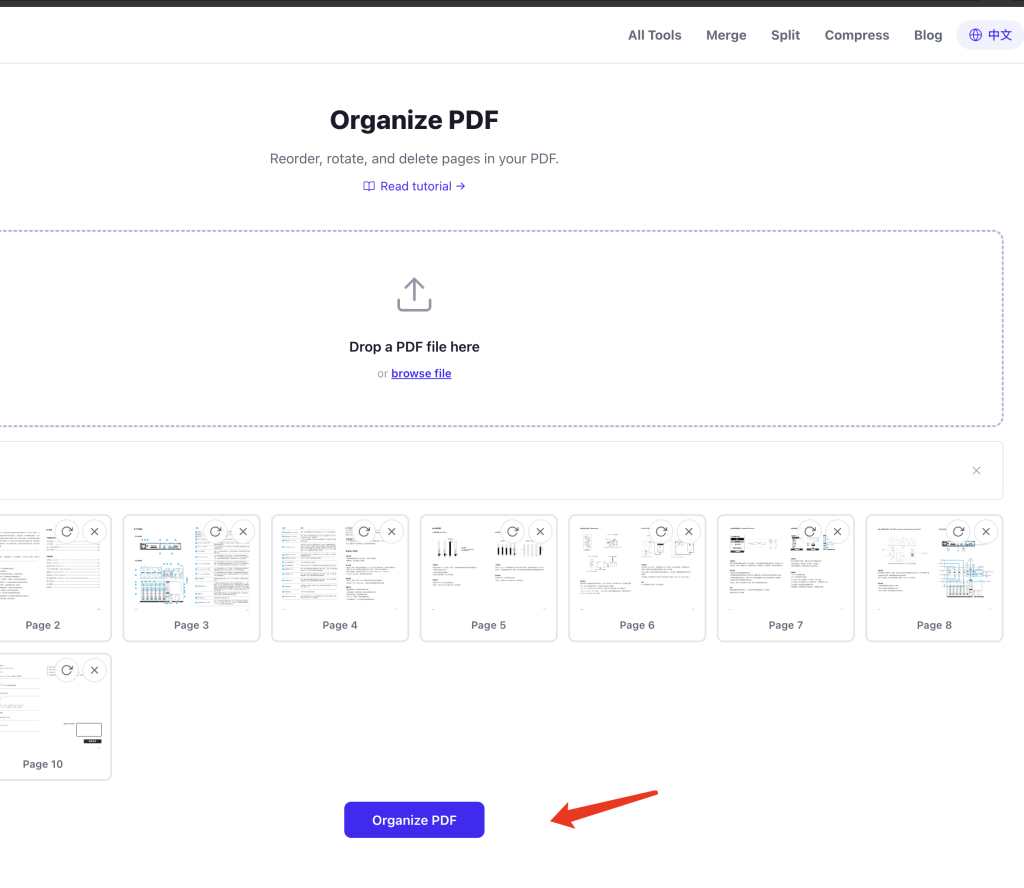
5. Click “Organize PDF” and download
When everything looks good, hit the button. A new PDF is generated in seconds. Download it — your original file stays untouched.
What does “organize PDF” mean exactly?
It means adjusting how pages are arranged inside a PDF. Specifically, three things:
- Reorder: Change the sequence pages appear in — move the last page to the front, for example
- Rotate: Change page orientation — turn a sideways page right-side up
- Delete: Remove pages you don’t want
You could do each of these with a separate tool, but if you need to reorder and rotate and delete all at once, doing it in one place saves a lot of back and forth.
When you’d actually need this
Scanned document with pages in the wrong order — drag them into the right sequence.
Some scanned pages came out crooked — rotate them without rescanning.
Contract has blank pages or duplicates — delete them to keep it clean.
Report needs chapter reordering — drag sections to the right spots and generate a new PDF.
Trimming a long document — easier than using a separate delete tool since you can reorder and delete together.
How is this different from the individual Reorder/Rotate/Delete tools?
PDFNeo has standalone tools for reordering, rotating, and deleting pages. Each one is focused on a single task. But if you need to do multiple things — say, delete a few pages, then rearrange the remaining ones, and rotate one page that’s sideways — the Organize tool lets you do it all without uploading and downloading repeatedly.
For a single operation, use the dedicated tool. For combining operations, Organize is more efficient.
Is it safe? Where does my file go?
Everything runs locally in your browser. Your PDF never gets uploaded to any server. Page thumbnails are rendered on your device. Close the tab and nothing is stored.
Can I undo changes?
Yes. Before you click “Organize PDF,” everything is reversible: click the delete button again to restore a page, drag it back to its original position, or click rotate again to turn it back. After generating the new PDF, your original file is still there, completely unchanged.
Ready to clean up your PDF? Open PDFNeo Organize PDF, upload, drag, rotate, delete, download. All in one place.
More PDF tools
- Reorder PDF — Just adjust page order
- Rotate PDF — Just fix page orientation
- Delete PDF Pages — Just remove unwanted pages
- Extract PDF Pages — Pull out specific pages
- Split PDF — Split into separate files by range