Scanned PDFs are frustrating — you can’t search them, you can’t copy the text, and retyping everything by hand is a waste of time. PDFNeo’s OCR tool extracts text directly from scanned PDFs and images, processing everything in your browser with zero uploads.
What Is OCR?
OCR (Optical Character Recognition) is the technology that turns text inside images into editable, searchable text. A scanned PDF is essentially a picture — you see words, but your computer sees pixels. OCR makes the computer “read” those pixels and convert them back into real text you can copy, edit, and search.
How to Extract Text from Scanned PDFs with PDFNeo
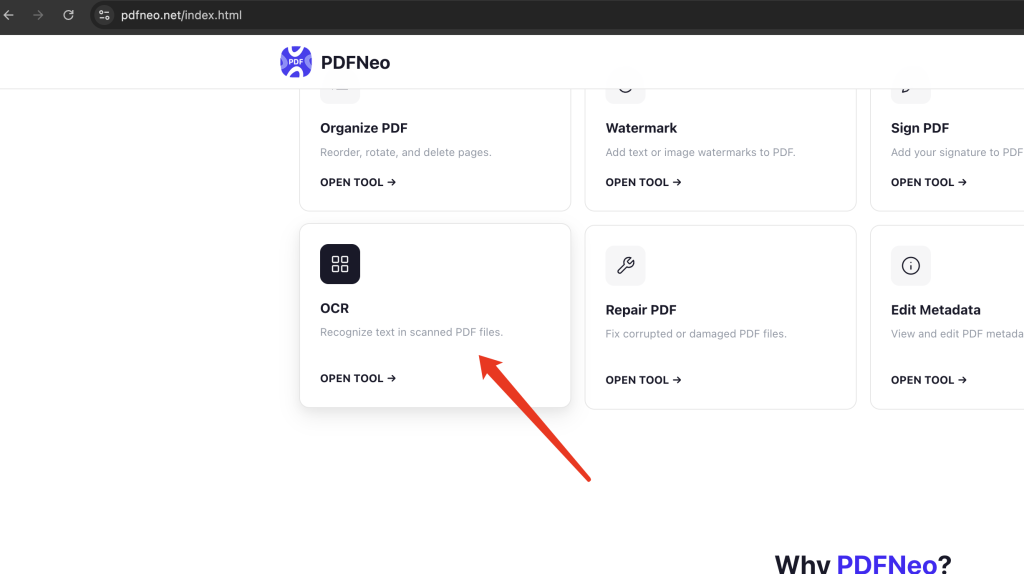
Step 1: Open the OCR Tool
Go to PDFNeo OCR. No signup, no software installation required.
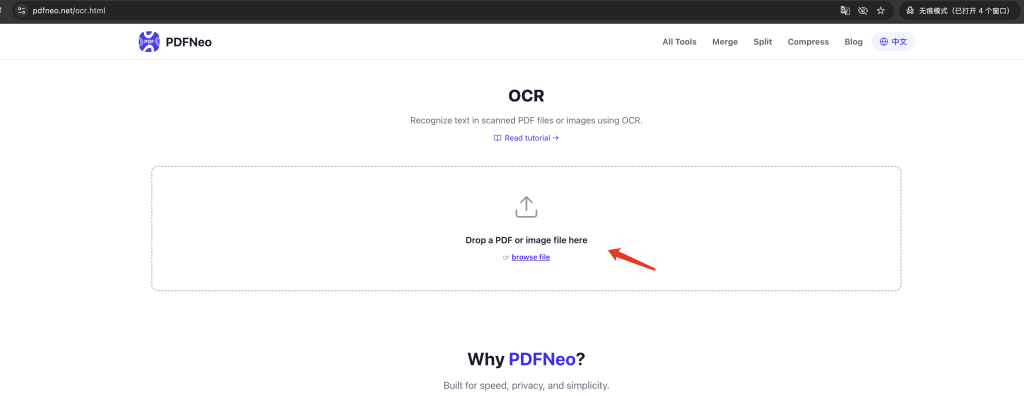
Step 2: Upload Your File
Click the upload area to select a file, or drag and drop a PDF or image directly. Supported formats:
- PDF files
- PNG, JPG, JPEG, WebP, BMP, TIFF images
Step 3: Select the Recognition Language
In the OCR settings, choose the language of your document. Eight languages are supported:
- English
- Simplified Chinese
- Traditional Chinese
- Japanese
- Korean
- French
- German
- Spanish
Choosing the correct language significantly improves accuracy. For documents mixing Chinese and English, select Chinese.
Step 4: Set Page Range (Optional)
If you only need specific pages from a PDF, enter the range in the “Pages” field — for example, 1-3, 5 means pages 1 through 3 plus page 5. Leave it blank to process all pages.
Step 5: Start OCR
Click the “Start OCR” button and wait for processing to complete. Speed depends on file size and page count, typically a few seconds to a few dozen seconds.
Step 6: Get Your Results
Once OCR is complete, you can:
- Copy Text: One-click copy to clipboard
- Download Text: Save as a .txt file
OCR vs. PDF to Text — What’s the Difference?
These two features are often confused:
表格
| OCR | PDF to Text | |
|---|---|---|
| Best for | Scanned PDFs, images | Normal PDFs (text is selectable) |
| How it works | Image recognition | Direct text layer extraction |
| Accuracy | Depends on image quality and language, typically 95%+ | 100% (exact extraction) |
| Speed | Slower (image processing required) | Very fast |
Quick test: if you can select and copy text from the PDF with your mouse, use PDF to Text. If you can’t (it’s a scanned document), use OCR.
Tips to Improve OCR Accuracy
Image Quality Matters
Higher resolution means better accuracy. Blurry, skewed, or noisy images will produce noticeably worse results. Use clear, high-resolution scans whenever possible.
Choose the Right Language
Selecting the wrong language (e.g., choosing Chinese for an English document) will produce nearly unusable results. For mixed-language documents, pick the primary language.
Straighten Tilted Documents
Scanned document came out crooked? Rotate it first for better OCR results. You can use PDFNeo’s Rotate PDF tool.
Don’t Process Too Many Pages at Once
While PDFNeo supports multi-page OCR, very large files (50+ pages) may strain browser memory. Consider processing in batches.
Why Use PDFNeo for OCR?
- Completely free: No usage limits, no file size restrictions
- Privacy first: All processing happens locally in your browser — your files never leave your device
- No registration: Open and use instantly, no email or account needed
- Multi-language: 8 major languages covering most use cases
- Image support: Not just PDFs — phone photos work too
Frequently Asked Questions
What if the OCR results contain errors?
OCR accuracy depends on image quality. Clear documents typically achieve 95%+ accuracy, but handwritten text, blurry characters, or unusual fonts may produce errors. Always proofread critical content after OCR.
Does it recognize handwritten text?
Not reliably. Tesseract OCR has limited accuracy for handwriting — it’s designed primarily for printed text.
OCR is running slow — what can I do?
Large files take longer, especially multi-page PDFs. Try processing only the pages you need, or use the tool on a faster internet connection (the language model downloads on first use).
Are my uploaded files safe?
Absolutely. PDFNeo’s OCR runs entirely in your browser. Your files never leave your computer. All data is automatically cleared when you close the page.
How well does Chinese OCR work?
Both Simplified and Traditional Chinese are supported with good results for printed text. Scan at 300 DPI or higher for best results — avoid small or blurry characters.
More PDF Tools
- Merge PDF – Combine multiple PDFs into one
- Split PDF – Extract specific pages from a PDF
- Compress PDF – Reduce PDF file size
- PDF to Word – Convert PDF to editable Word document
- Watermark PDF – Add watermarks to protect your PDFs