Contracts, agreements, authorization letters — more and more documents need your signature. But you don’t want to print, sign, and scan them back. The quality loss from scanning is painful.
Signing directly on the PDF is the easiest way. PDFNeo Sign PDF lets you draw your signature right in the browser, place it anywhere on the PDF, and download.
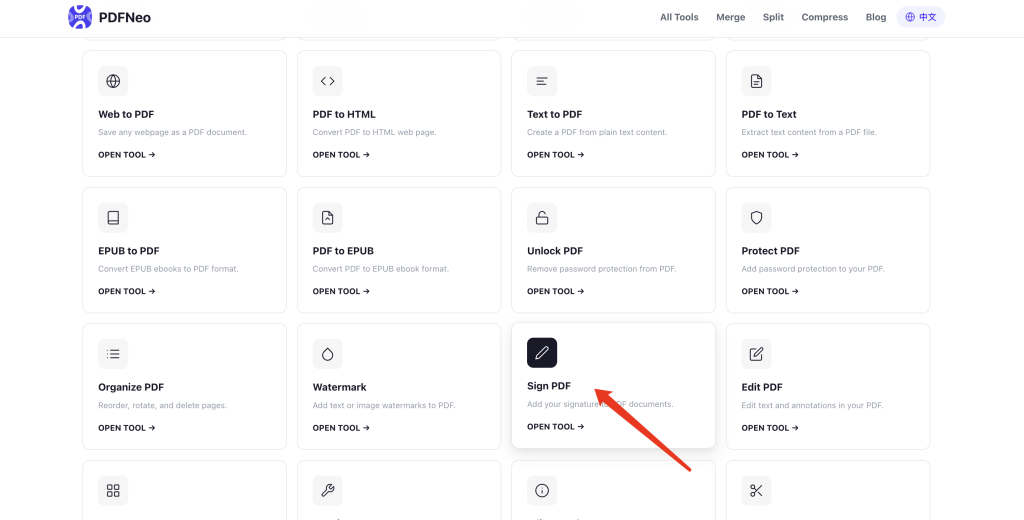
How to sign a PDF
1. Open the tool and upload your PDF
Go to PDFNeo Sign PDF. Drag in the PDF you need to sign, or click to browse.
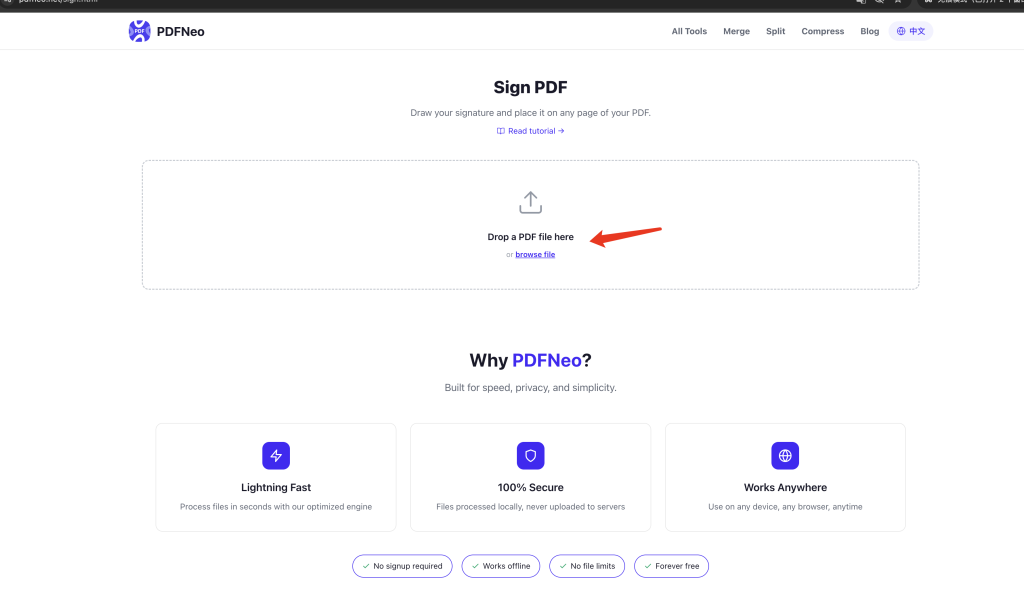
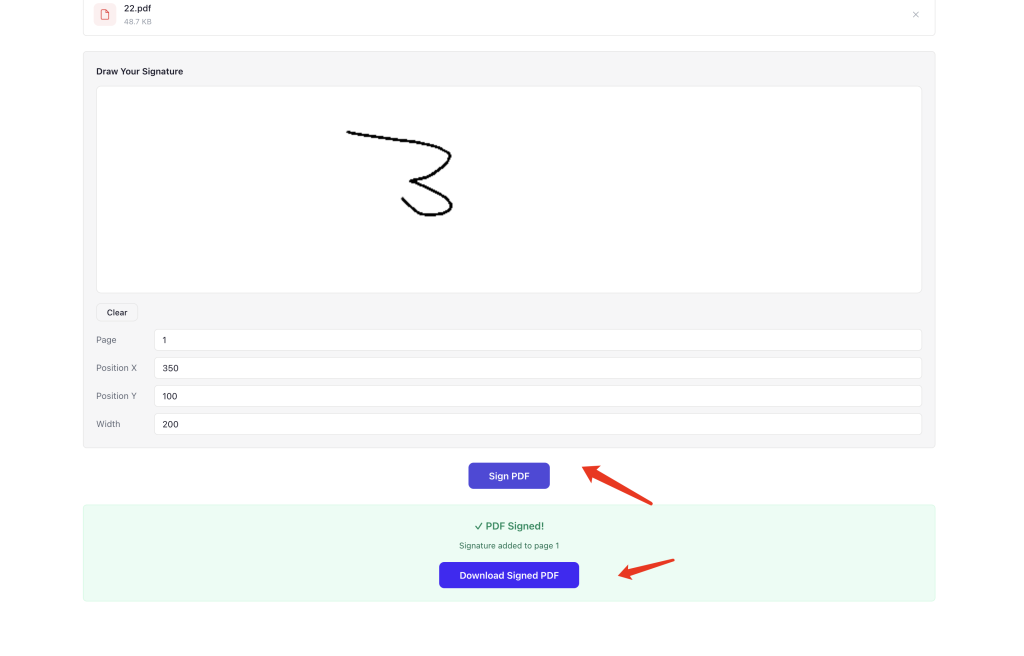
2. Draw your signature
There’s a signature canvas on the page. Use your mouse or stylus to write your signature directly. Not happy with it? Hit “Clear” and try again.
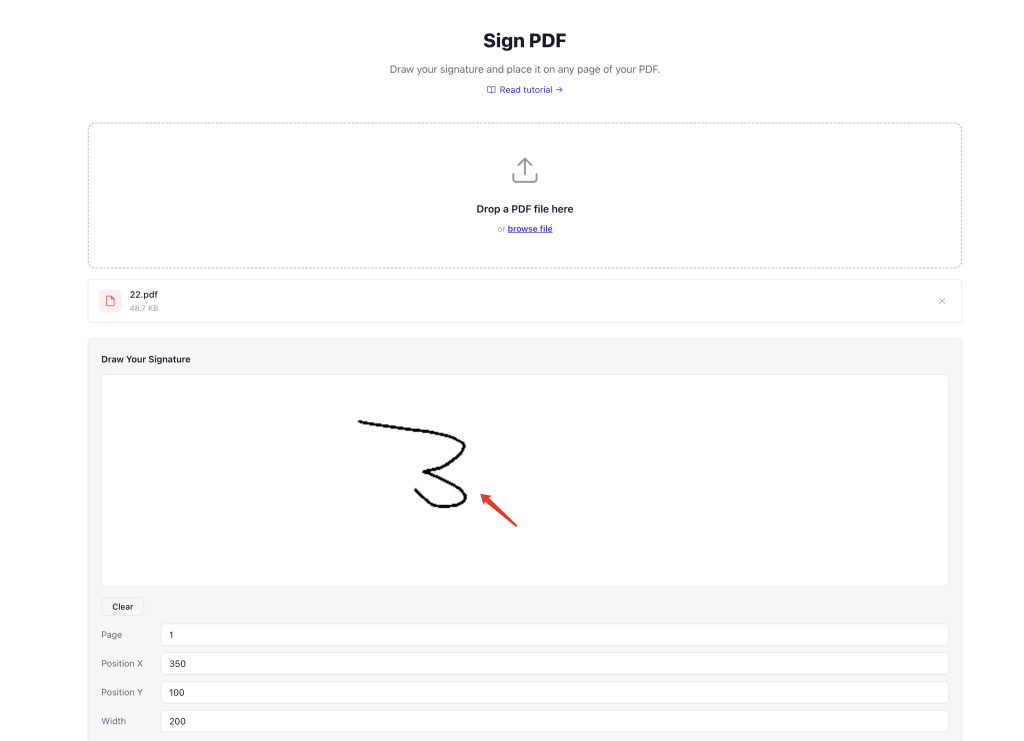
3. Set the signature position
- Page — Which page to place the signature on. Default is page 1.
- Position X — Horizontal position. Higher values move it right.
- Position Y — Vertical position. Higher values move it down.
- Width — How wide the signature appears. Adjust between 50 and 500.
The default position is roughly upper-center on the page. Most signature lines are near the bottom, so you’ll likely need to increase the Y value.
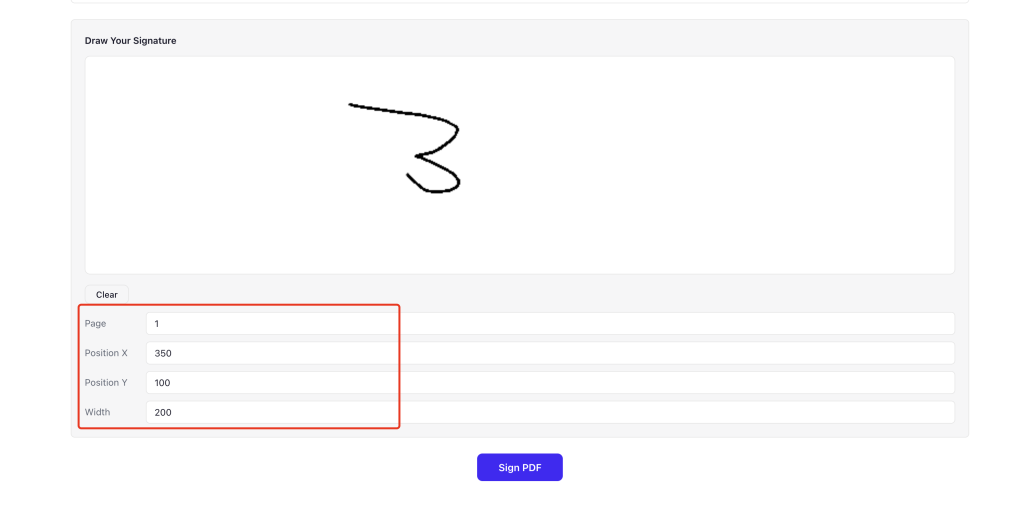
4. Click “Sign PDF” and download
Hit the button. Your signature gets embedded into the PDF. Download the new file — your original stays untouched.
How to adjust the position values
Position X and Y use PDF coordinates, not pixels. The defaults (X:350, Y:100) place the signature roughly in the upper-center area. For most contracts where the signature line is at the bottom-right, try something like X:400, Y:680 (for an A4 page) and fine-tune from there.
Width controls how big the signature appears. 200 is the default and works for most cases. Too big? Make it smaller. Too small? Make it bigger. Anywhere from 50 to 500.
Is this signature legally binding?
It depends on your country and the type of document. This tool embeds a handwritten signature image onto the PDF page — that’s an electronic signature (e-signature), not a digital signature backed by a certificate.
Electronic signatures work fine for most everyday scenarios: internal documents, informal agreements, approval workflows. But for formal legal documents, some jurisdictions require digitally certified signatures. If you’re unsure, check the legal requirements that apply to your situation.
Does it work on mobile?
Yes. The signature canvas supports touch input, so you can draw your signature with your finger on a phone or tablet. Larger screens give better results — tablet > phone > desktop mouse.
Can anyone see my signature?
Everything runs locally in your browser. Your PDF never gets uploaded to any server. The signature is generated and embedded on your device. No third party can see your signature or file contents. Close the tab and nothing is stored.
I made a mistake — can I redo it?
Before clicking “Sign PDF,” you can clear the canvas and redraw anytime. After clicking, the signature is already embedded — you can’t remove it separately. You’d need to re-upload the original file and sign again. So double-check the position and signature before confirming.
Ready to sign? Open PDFNeo Sign PDF, upload, draw, position, download. No printing, no scanning.
More PDF tools
- Protect PDF — Add password protection after signing
- Watermark PDF — Add text or image watermarks
- Organize PDF — Reorder pages before signing
- Merge PDF — Combine PDFs before signing
- Compress PDF — Reduce file size after signing