You send out a PDF and someone claims it as their own. Or you’re worried internal documents might leak and want to mark them. Watermarks solve this — overlay a mark on every page that doesn’t block the content but makes ownership clear.
PDFNeo Watermark PDF supports both text and image watermarks. Font size, color, opacity, rotation, and position — all adjustable.
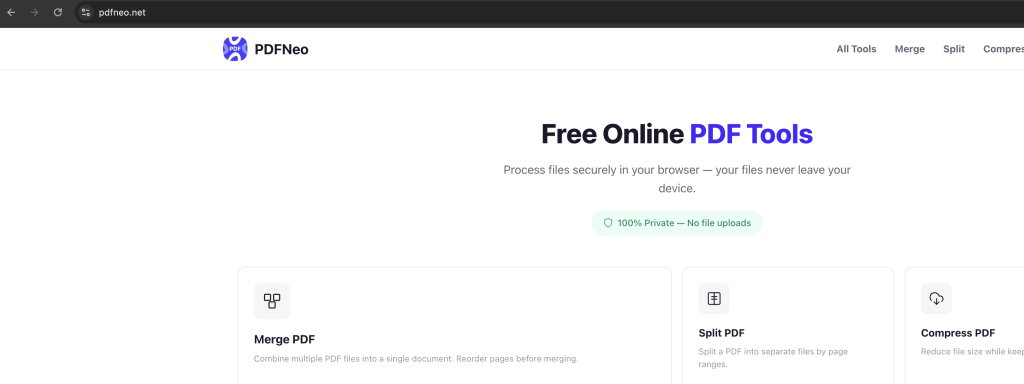
How to add a watermark to a PDF
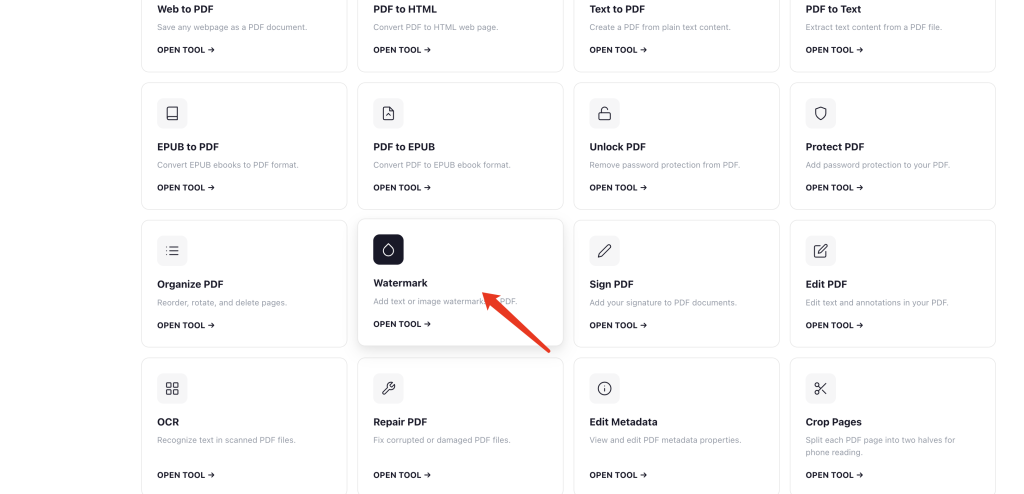
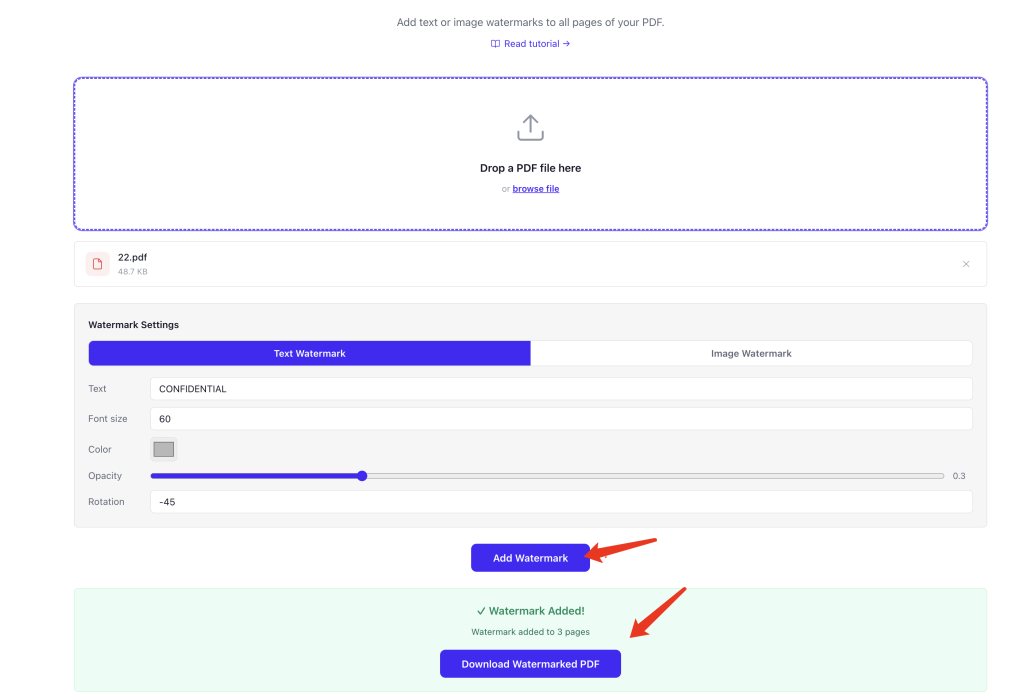
1. Open the tool and upload your PDF
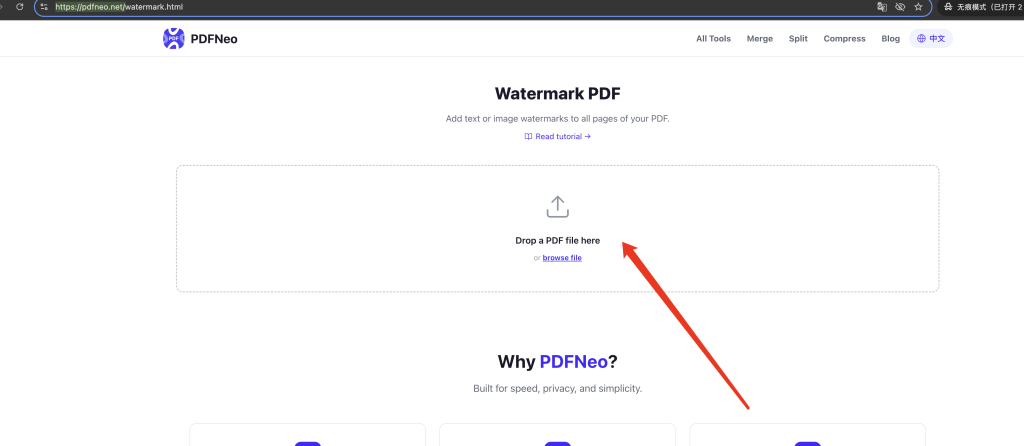
Go to PDFNeo Watermark PDF. Drag in your PDF or click to browse.
2. Choose watermark type
There are two tabs on the page: Text Watermark and Image Watermark. Pick whichever you need.
Text Watermark: Type your text — something like “CONFIDENTIAL”, “DRAFT”, “INTERNAL USE ONLY”, or a company name.
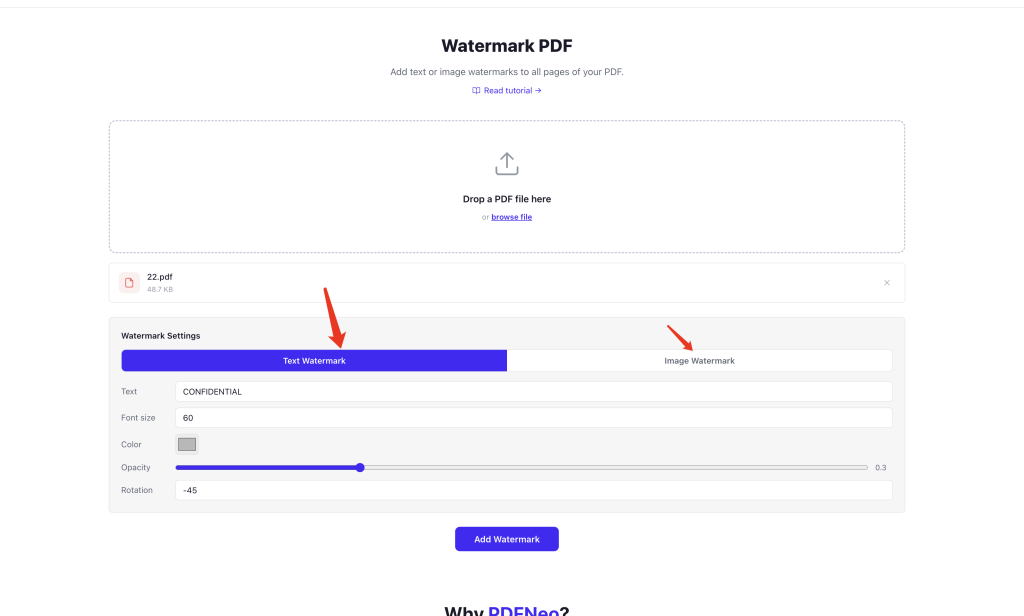
Image Watermark: Upload a PNG or JPG image — a company logo, for example.
3. Adjust watermark settings
For text watermarks: text content, font size (10-200), color, opacity, and rotation.
For image watermarks: image size (small/medium/large/full page width), opacity, rotation, and position (9-grid selector).
4. Click “Add Watermark” and download
When you’re happy with the preview, hit the button. The watermark gets added to every page. Download the new PDF — your original file stays untouched.
Text watermark vs. image watermark — which one?
For most cases, a text watermark is enough. Type “CONFIDENTIAL”, “DRAFT”, “SAMPLE”, or similar — simple and direct.
Image watermarks work better when you need brand identity. A company logo or team badge on every page doubles as both watermark and branding. A transparent PNG works best since it won’t block the content underneath.
What opacity should I use?
This comes up a lot. Too low and the watermark is invisible — pointless. Too high and it blocks the text — annoying.
General recommendation: 0.2–0.4 for text watermarks, 0.2–0.3 for image watermarks. Visible enough to serve its purpose, subtle enough not to get in the way. Tweak it in the tool until it looks right.
What about the rotation angle?
Text watermarks default to -45° — that classic diagonal from bottom-left to top-right. It looks professional and doesn’t interfere much with reading. Set it to 0° if you want a horizontal watermark, useful for header/footer placement. Image watermarks default to 0°.
When you’d actually need this
Prevent unauthorized use — add your company name or logo so everyone knows where it came from.
Mark document status — “DRAFT”, “FINAL”, “APPROVED” — clear at a glance.
Discourage leaks — an “INTERNAL USE ONLY” watermark means if it gets out, there’s a trail.
Portfolio display — designers watermark work to showcase it without giving away the full-resolution original.
Sample files — add “SAMPLE” so clients can review but not reuse the deliverable directly.
Can I remove a watermark after adding it?
Once added, the watermark is baked into the PDF — it’s not a separate layer you can toggle off. The only way to remove it is to regenerate the PDF from the original without the watermark. So make sure you’re happy before you apply it.
If you just need temporary protection, consider Protect PDF with a password instead — passwords can be removed later.
Is it safe? Where does my file go?
Everything runs locally in your browser. Your PDF never gets uploaded. Watermarks are rendered on your device. Close the tab and nothing is stored.
Ready to watermark your PDF? Open PDFNeo Watermark PDF, upload, choose your watermark type, adjust settings, download. Done in minutes.
More PDF tools
- Protect PDF — Add password protection instead
- Unlock PDF — Remove PDF passwords
- Organize PDF — Reorder, rotate, and delete pages in one tool
- Compress PDF — Reduce file size
- Merge PDF — Combine multiple PDFs into one