You’ve got a PDF you don’t want just anyone opening. Maybe it’s a contract, a quote, personal records, or internal documents. Whatever it is, adding a password is the quickest way to keep it safe.
Here’s the thing: you don’t need Adobe Acrobat, you don’t need to download anything, and you don’t need to pay. PDFNeo Protect PDF does it right in your browser.
How to add a password to a PDF
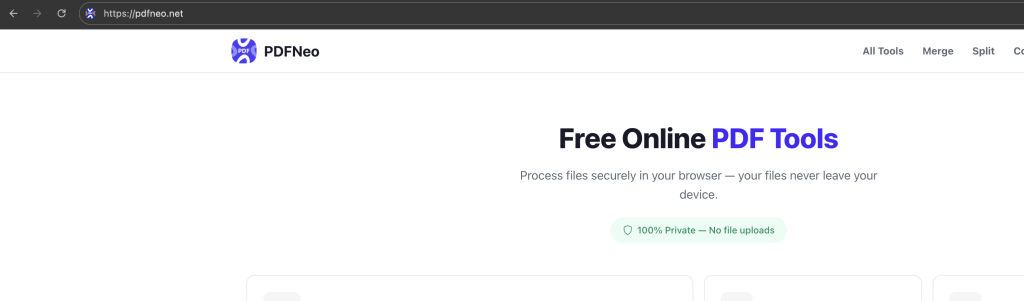
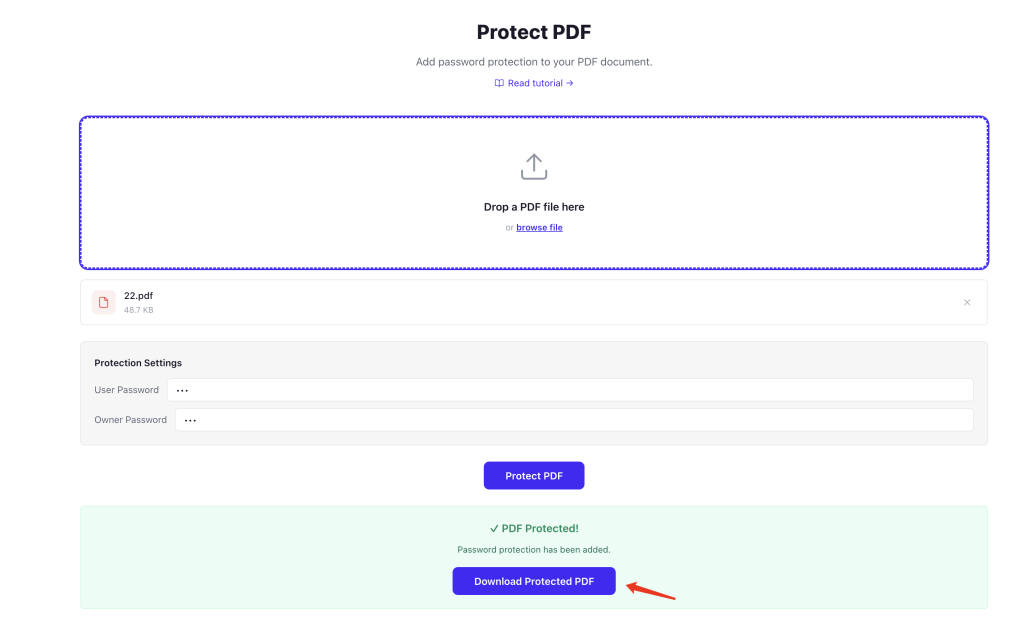
1. Open the tool
Go to PDFNeo Protect PDF. The page loads immediately — no sign-up, no account required.
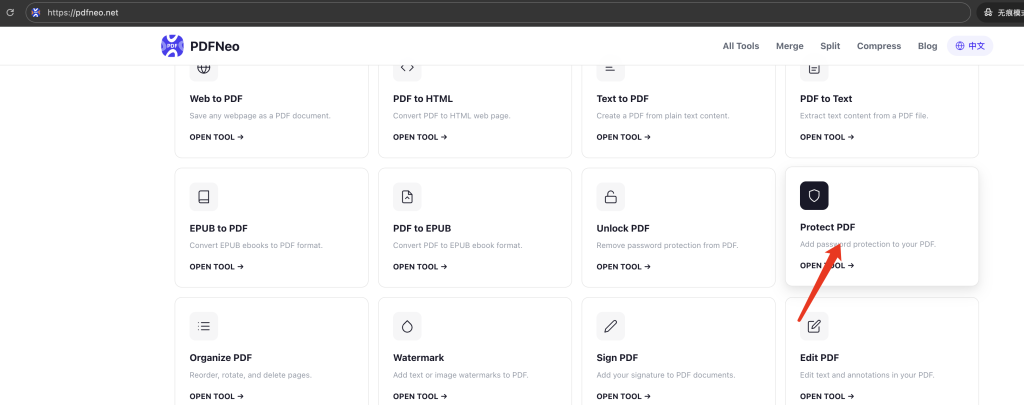
2. Upload your PDF
Drag and drop your file onto the page, or click to browse. Any PDF works, regardless of size or page count.
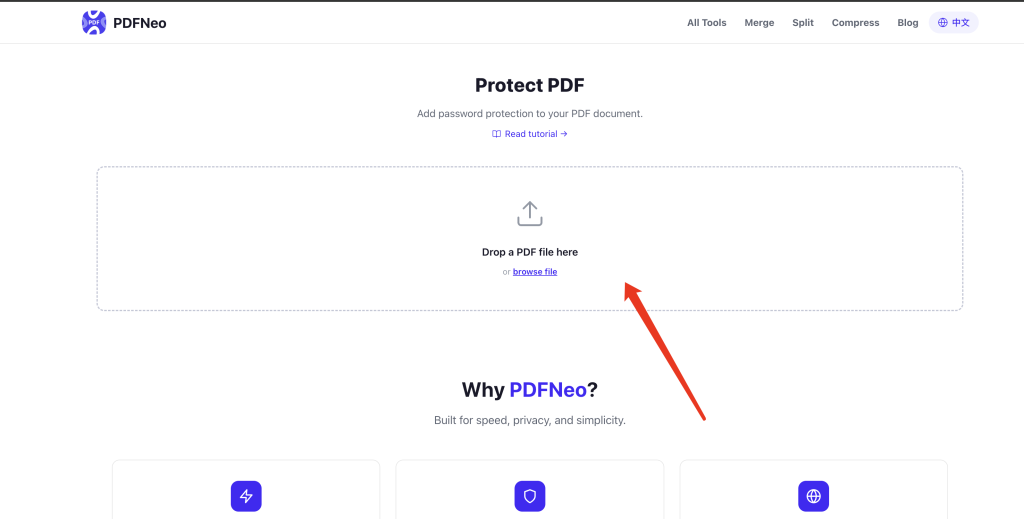
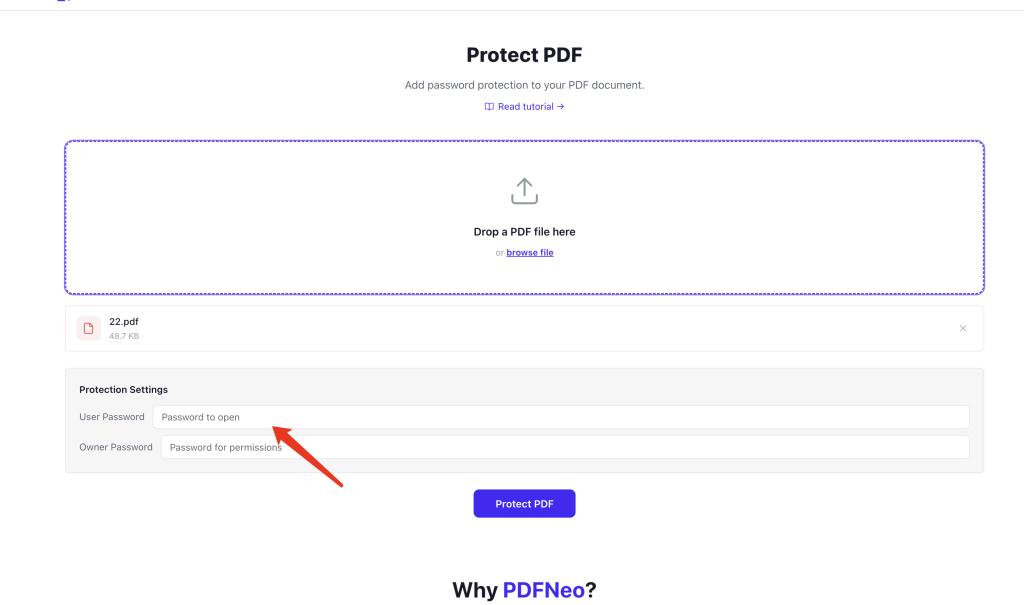
3. Set your passwords
You’ll see two fields:
- User Password — This is the password someone needs to open the file. Most people only need this one.
- Owner Password — This controls what people can do after opening (print, copy, edit). Optional, but useful for sensitive documents.
At least one password is required. For basic protection, just set the User Password.
4. Click “Protect PDF” and download
Hit the button. Processing takes a few seconds. Download the protected PDF — your original file stays unchanged.
That’s it. The new PDF will ask for a password every time someone tries to open it.
User Password vs. Owner Password — what’s the difference?
This comes up a lot, so let’s clear it up:
- User Password (open password): Required to open the document. Without it, you can’t even see the pages. This is what most people mean when they say “password protect a PDF.”
- Owner Password (permissions password): Controls what you can do with the file after opening — print, copy text, edit content, add comments. You can open the file without it, but certain actions are restricted.
If you just want to stop unauthorized people from reading the file, a User Password is enough. If you also want to prevent copying or printing, add an Owner Password too.
Tips for setting a strong PDF password
- Avoid obvious passwords like “123456” or “password” — they’re trivial to guess.
- Longer is generally better, but don’t make it so long you can’t remember it yourself.
- A short phrase works well: something like “BlueMug42” is easy to remember and hard to guess.
- Don’t use the same password you use for your email or bank account.
Is this safe? Where does my file go?
Everything runs locally in your browser. Your PDF never gets uploaded to any server. The password you set is processed on your device — nobody else can see it. Close the tab and there’s no trace.
Can I remove the password later?
Yes. If you know the password, use PDFNeo Unlock PDF to remove it and get a clean, unprotected copy.
Can I password-protect a PDF without Adobe?
Absolutely. You don’t need Adobe Acrobat or any paid software. PDFNeo Protect PDF works in any modern browser — Chrome, Firefox, Safari, Edge. Free, no install, no account.
Does adding a password change the PDF content?
No. The text, images, layout, and formatting all stay exactly the same. The only difference is that opening the file now requires a password.
What if I forget the password?
There’s no way to recover it. PDF encryption is designed that way on purpose — if there were a backdoor, it wouldn’t be secure. Keep your passwords somewhere safe, or use PDFNeo Unlock PDF while you still remember it to create an unprotected copy.
Ready to protect your PDF? Open PDFNeo Protect PDF, upload, set a password, download. Takes less than a minute.
More PDF tools
- Unlock PDF — Remove password protection from a PDF
- Compress PDF — Reduce file size
- Merge PDF — Combine multiple PDFs into one
- Delete PDF Pages — Remove specific pages
- Extract PDF Pages — Pull out individual pages