PDFs look great, but putting them on a website is a pain — can’t embed them properly, can’t restyle, can’t add links. Convert to HTML and you’ve got a real web page you can do anything with.
Maybe you’re building a site and want to display PDF content on an actual page. Maybe you want to turn a PDF report into something interactive. Or maybe you just need to edit what’s inside a PDF. All of these start with converting to HTML first.
Use PDFNeo PDF to HTML. A few steps and you’re done:
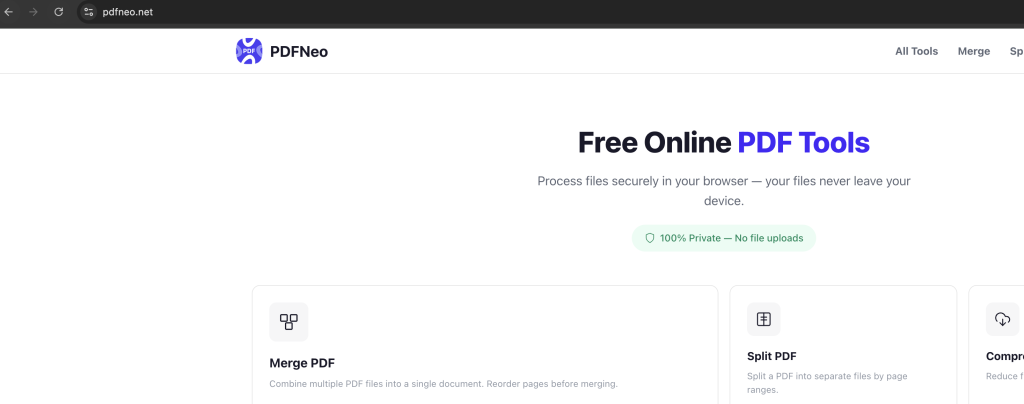
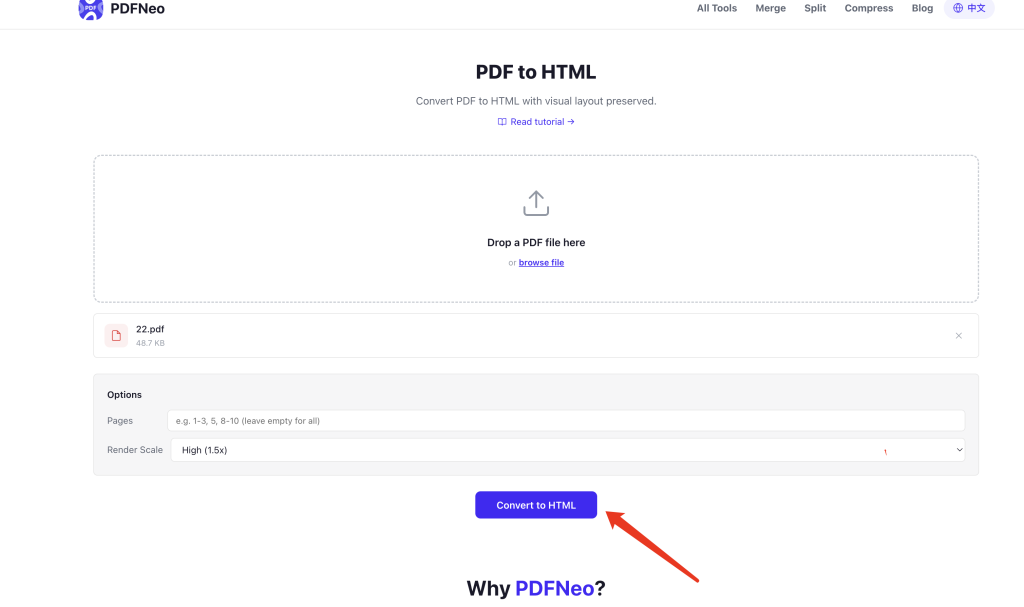
1. Open the page
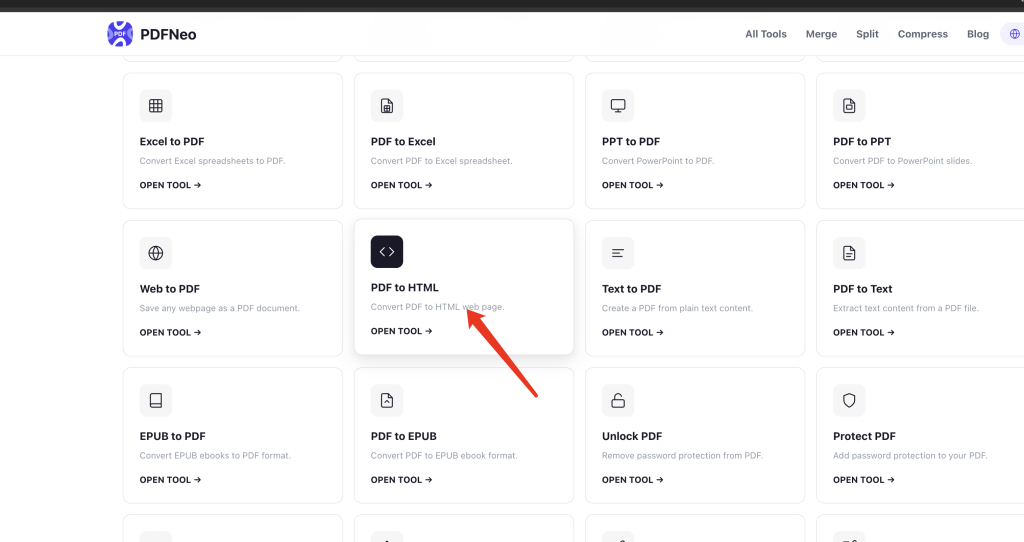
Go to PDFNeo PDF to HTML. Upload area right there.
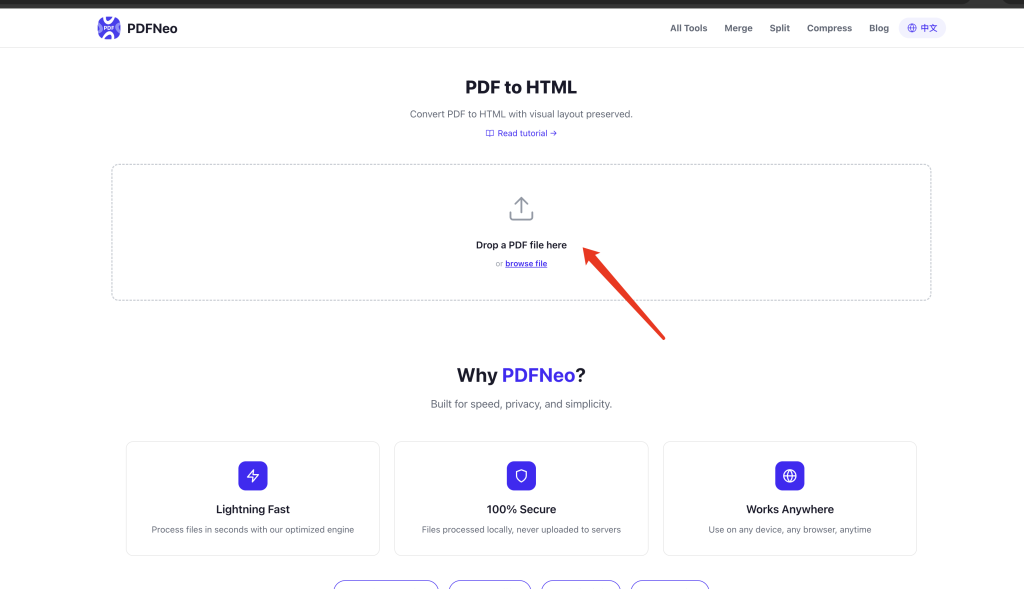
2. Upload your PDF
Drag in a PDF file, or click to browse.
3. Set options (optional)
- Pages — don’t need the whole thing? Specify a range like “1-3, 5, 8-10”
- Render Scale — Normal / High / Maximum. High is the default and fine for most uses. Go Maximum if you need extra clarity
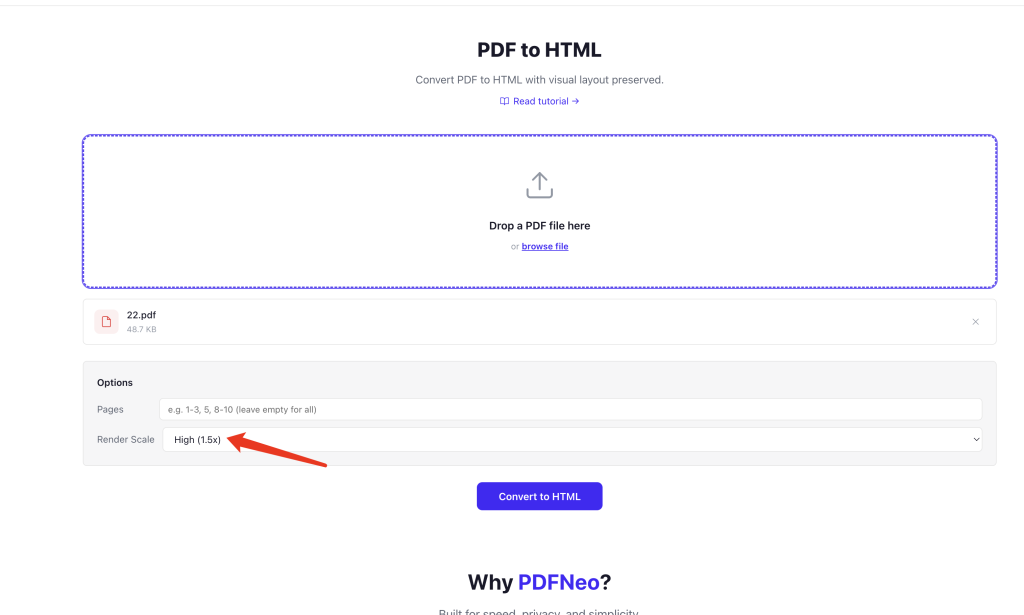
4. Convert and download
Click “Convert to HTML”, wait a few seconds. You’ll get a ZIP file containing the HTML and any image assets.
What does the result look like?
Each PDF page becomes an HTML page, with text, images, and layout preserved as closely as possible. You download a ZIP — unzip it and open the HTML file in any browser.
The way it works: each page gets rendered as an image, then wrapped in HTML. So visually it’s basically identical to the original PDF. But the text isn’t real text — it’s part of the image, so you can’t select or copy it.
If you need selectable, searchable text in your HTML, that requires a different kind of extraction and reflow. This tool focuses on visual fidelity.
When you’d actually use this
Web display — got a PDF you want to show on a website? Embedded PDF viewers are clunky. Convert to HTML and use it as a real page.
Content migration — old materials only exist as PDF. You want them on your site or in your CMS. Convert first, then edit.
Editing PDF content — PDFs aren’t editable. HTML is. Convert and tweak to your heart’s content.
Offline archiving — PDFs need a reader and take up space. HTML opens anywhere, on anything.
Which render scale to pick
Normal (1x) — smaller file, faster loading, fine for reading. Gets blurry if you zoom in.
High (1.5x) — the default. Good balance of clarity and file size. Recommended for most cases.
Maximum (2x) — sharpest output, biggest file. Use when you need to print or display on a large screen.
Privacy
Same as every PDFNeo tool — everything runs locally in your browser. Your PDF never gets uploaded. Close the tab and it’s gone.
Open PDFNeo PDF to HTML, upload your PDF, set options, convert, download the ZIP. No software, no signup, no uploads.
More tools
- HTML to PDF — The other way around
- PDF to Word — Convert PDF to editable Word
- PDF to JPG — Export each page as an image
- PDF to PPT — Turn PDF into a presentation
- PDF to Excel — Pull table data out of PDFs