PDF won’t open? Opens with garbled text, missing pages, or display errors? These are almost always caused by internal structure corruption. PDFNeo’s repair tool rebuilds the PDF’s internal structure, restoring damaged files — completely free, processed locally in your browser.
Why Do PDF Files Get Corrupted?
PDF corruption is more common than you might think:
- Interrupted transfers: Network drops during download leave incomplete files
- Storage failures: Bad sectors on USB drives or hard disks corrupt data
- Editor crashes: PDF editor crashes mid-save, leaving incomplete writes
- Email attachment damage: Multiple forwards or compression breaks the structure
- Cloud sync conflicts: Simultaneous edits across devices cause overwrites or truncation
Whatever the cause, the core problem is the same: the PDF’s internal structure is broken. Repair works by reading the raw data, skipping damaged sections, and building a clean new file.
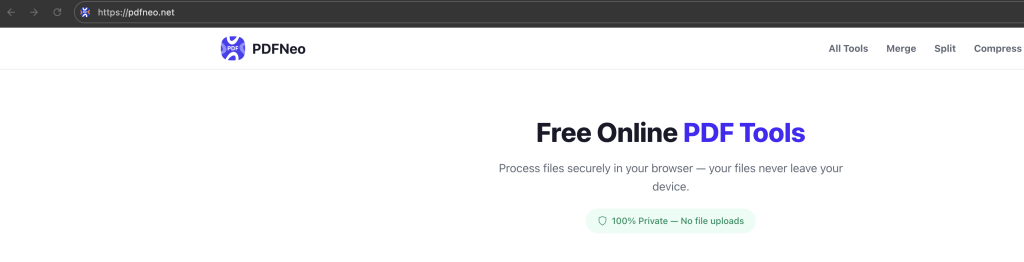
How to Repair a PDF with PDFNeo
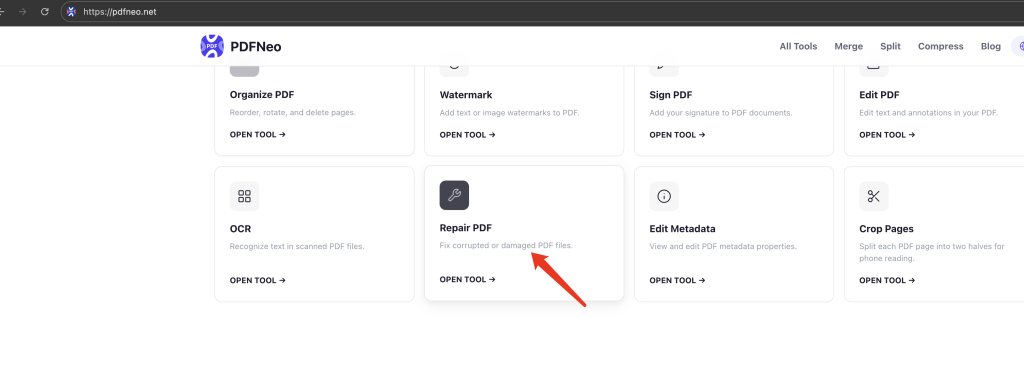
Step 1: Open the Repair Tool
Go to PDFNeo Repair PDF. No signup or software installation required.
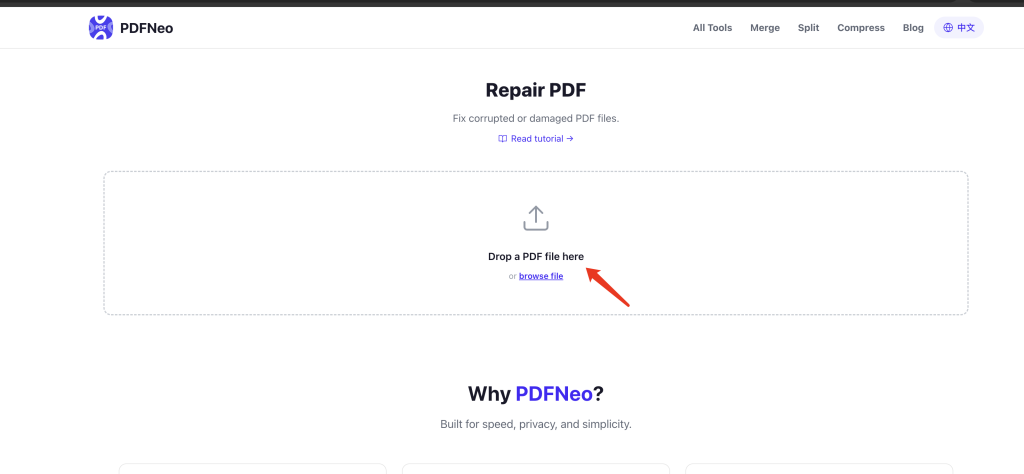
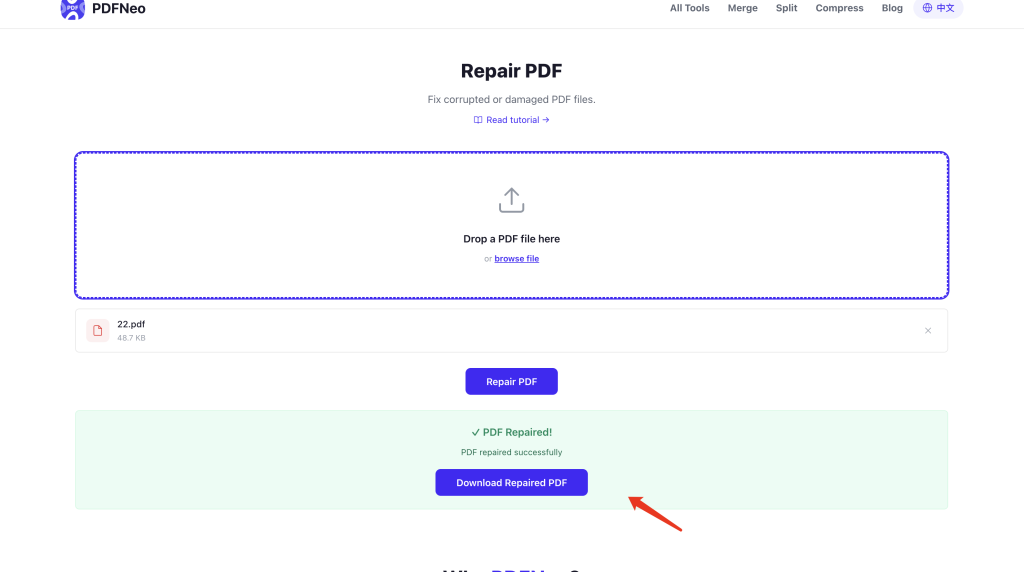
Step 2: Upload Your Damaged PDF
Click the upload area to select a file, or drag and drop a PDF directly. PDF format only.
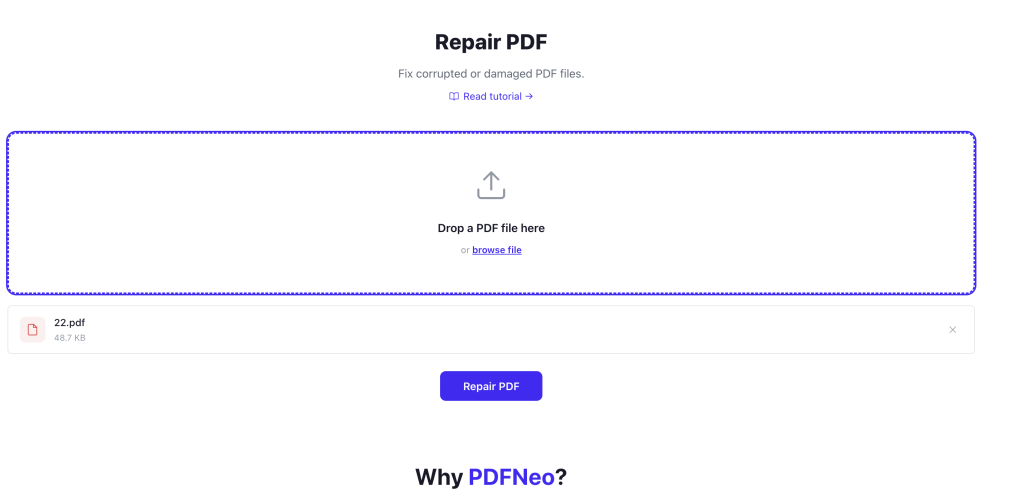
Step 3: Start the Repair
Click the “Repair PDF” button. The tool automatically:
- Reads the raw PDF data
- Parses the PDF structure (skipping damaged sections)
- Rebuilds a complete PDF file
- Generates a new file that opens normally
The whole process usually takes just a few seconds.
Step 4: Download the Repaired File
Once repair is complete, click download. The file name automatically adds a -repaired suffix, so your original file stays untouched.
How PDF Repair Works Technically
PDFNeo uses a rebuild approach:
- Loads the PDF in
ignoreEncryptionmode, bypassing damaged header information - The pdf-lib library reads all parseable content (pages, fonts, images, etc.)
- Successfully read content is written into a brand-new PDF structure
- The new file has a complete, properly formatted internal structure
In plain terms: salvage the parts that still work, assemble them in a new frame.
What Can Be Repaired (and What Can’t)
Repairable Issues
- Corrupted PDF header or trailer (the most common “won’t open” cause)
- Cross-reference table (xref) errors
- Truncated files where most content remains
- Damaged encryption info with intact content
- Structure chaos from editor save failures
Not Repairable
- Content completely overwritten or zeroed out
- Severe truncation (only a tiny fraction of the file remains)
- Image and font data already corrupted (repaired file may be missing images)
- Deeply encrypted files with lost passwords
Repair isn’t magic, but it solves most common “won’t open” problems. Always check the repaired file to make sure the content is complete.
Should You Back Up Before Repairing?
Always back up the original file. PDFNeo generates a new file without modifying the original, but good backup habits matter. If the repair result isn’t ideal, you’ll still have the original to try other solutions.
What If the Repaired File Looks Different?
Repair rebuilds structure — it doesn’t restore the original exactly. Possible changes:
- File size changes: The rebuilt PDF may be smaller since damaged redundant data is discarded
- Missing content: Pages with unrecoverable data may be absent in the repaired file
- Minor format differences: Font embedding methods and layout details may differ slightly from the original
These are normal. Core content is almost always preserved.
Why Use PDFNeo for PDF Repair?
- Completely free: No usage limits, no file size restrictions
- Privacy first: All processing happens locally in your browser — your files never leave your device
- No registration: Open and use instantly, no email or account needed
- Seconds to complete: Most files are repaired in just a few seconds
- Original stays safe: Repaired file is saved separately, original is never modified
Frequently Asked Questions
The repaired PDF still won’t open — what now?
The file may be too severely damaged, with core data already lost. You can try professional repair software like Adobe Acrobat’s built-in repair, but success rates for heavily damaged files are generally low.
The repaired file has fewer pages — why?
Those pages’ data was likely too damaged to recover. The repair tool can only preserve content it can successfully read.
Can I repair an encrypted PDF?
If the encryption info is damaged but the content is intact, the repair tool can bypass the encryption and read the content. But if the PDF is properly encrypted and requires a password to open, that’s not “damage” — you need an unlock tool instead.
Will repair affect images and text in the PDF?
Normally, no. Repair rebuilds structure without modifying content. However, if image or text data itself is corrupted, those elements may display incorrectly or be missing in the repaired file.
Can I repair very large files (100MB+)?
Yes, but processing will take longer. For large files, use a device with sufficient memory to avoid browser crashes.
More PDF Tools
- Unlock PDF – Remove PDF password protection
- Protect PDF – Add password to PDF
- Compress PDF – Reduce PDF file size
- Merge PDF – Combine multiple PDFs into one
- OCR PDF – Extract text from scanned documents