PDFs carry hidden information — title, author, subject, keywords, creation tool, and more. This is metadata: data about the document itself. Sometimes you need to change it — to protect your privacy, correct errors, or make documents look more professional. PDFNeo’s metadata editor lets you view and edit PDF properties right in your browser, free and secure.
What Is PDF Metadata?
Metadata is “data about data.” PDF metadata isn’t the visible content of your document — it’s the property information describing the file, including:
- Title: The document title, shown in browser tabs and search engine results
- Author: The creator’s name
- Subject: A description of the document’s topic
- Keywords: Terms for search and categorization
- Creator: The original software that generated the PDF (e.g., Word, InDesign)
- Producer: The final software that produced the PDF (e.g., Adobe PDF Library)
- Creation and modification dates: Timestamps
This information doesn’t appear on the pages, but anyone can view it through file properties.
Why Edit PDF Metadata?
Protect Your Privacy
Many PDFs automatically record the author name, computer username, and creation time. Clear or modify these fields before sharing to avoid exposing personal identity.
Improve SEO and Searchability
PDF title and keywords directly affect how search engines index your file. Setting accurate titles and keywords for online PDFs can significantly improve search rankings.
Fix Incorrect Information
Auto-filled metadata is often wrong — the title shows the filename instead of the real title, the author shows a computer username. Correcting these makes your document look professional.
Standardize Document Management
Organizations often have metadata standards. Setting consistent subjects and keywords makes internal search and archiving much easier.
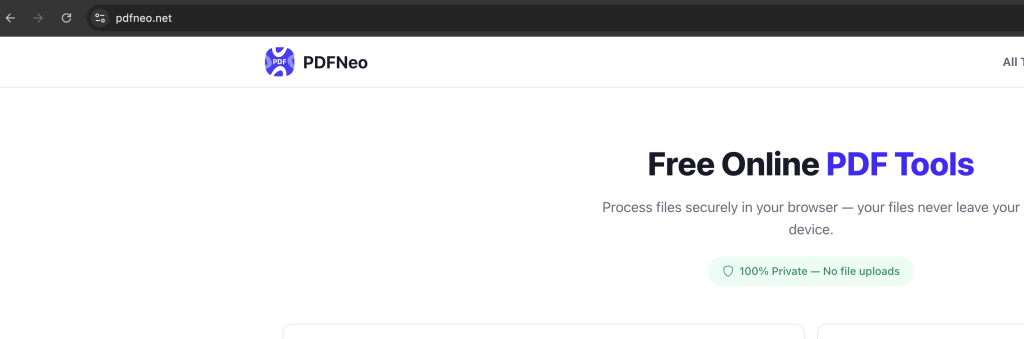
How to Edit PDF Metadata with PDFNeo
Step 1: Open the Metadata Editor
Go to PDFNeo Edit Metadata. No signup or software installation required.
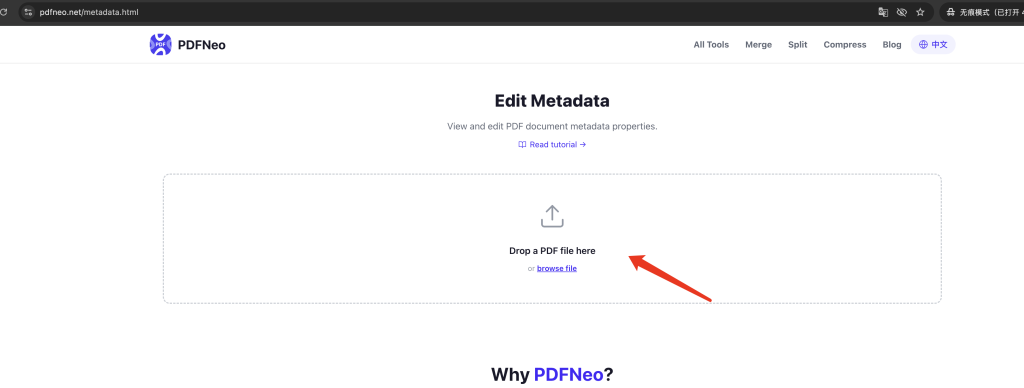
Step 2: Upload Your PDF
Click the upload area to select a file, or drag and drop a PDF directly. The tool automatically reads and displays all existing metadata after upload.
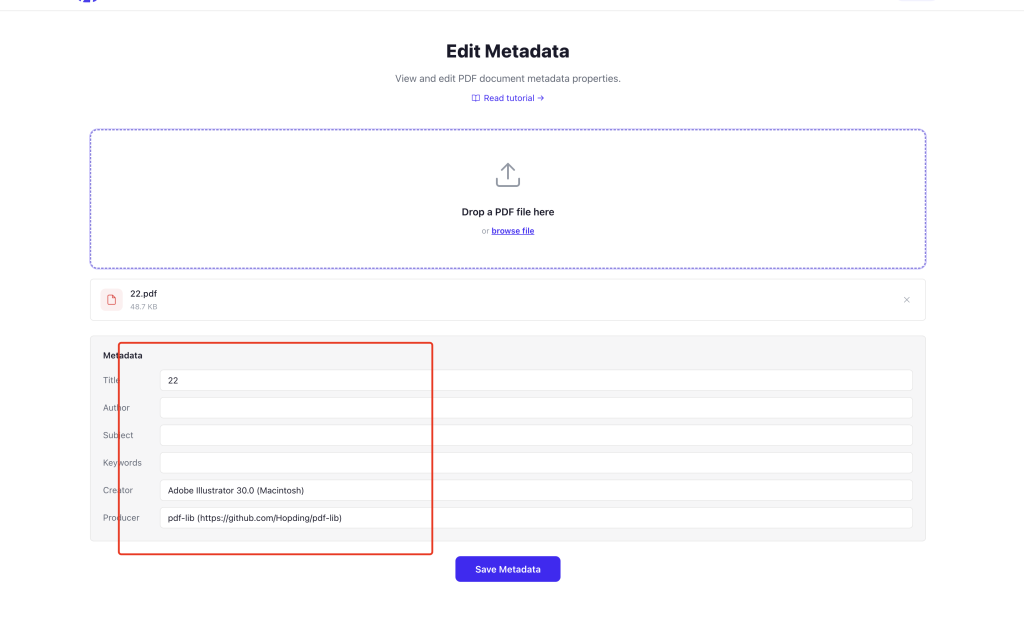
Step 3: Edit the Metadata
Modify any field directly:
- Title: Enter the document title
- Author: Enter the author’s name
- Subject: Enter a topic description
- Keywords: Separate multiple keywords with commas, e.g.,
PDF, metadata, editor - Creator: The original creation tool (usually no need to change)
Fields left empty will be cleared when saved. Leave unchanged fields as they are.
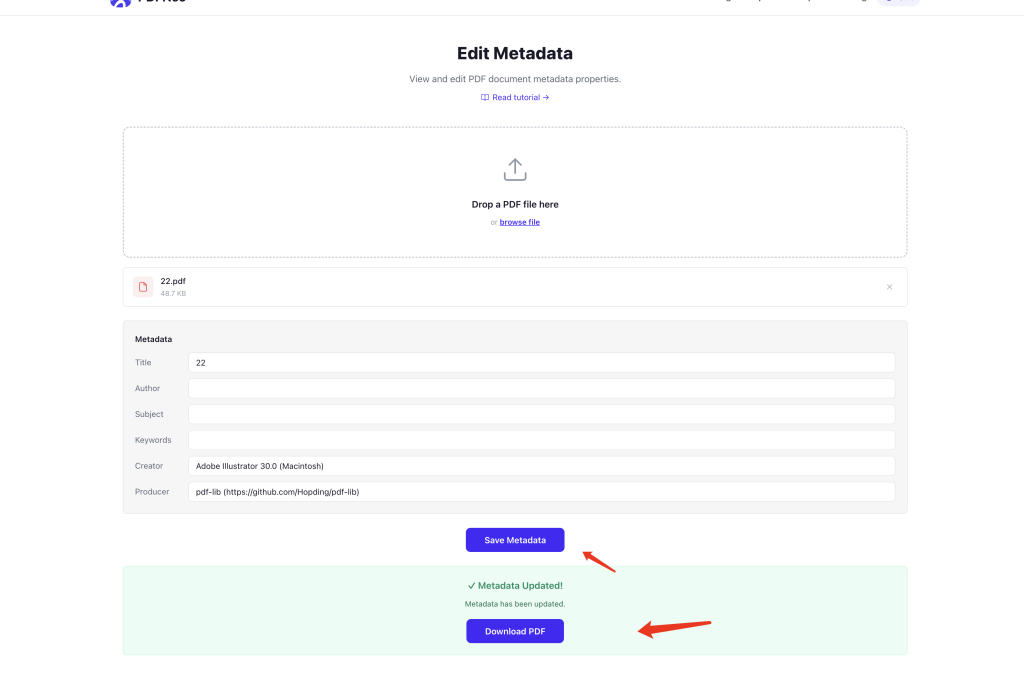
Step 4: Save Changes
Click the “Save Metadata” button. The tool generates a new PDF with updated metadata. Download and you’re done.
Does Editing Metadata Affect PDF Content?
No. Metadata is completely separate from page content. Modifying metadata only changes file properties — it won’t alter any text, images, or layout on the pages.
When Should You Clean Up Metadata?
Sending Resumes
Resume PDFs may contain your computer username and creation time. Check and clean Author and Creator fields before submitting.
Legal Documents
Legal documents are especially metadata-sensitive — they might expose the document creation chain and modification history.
Publishing Academic Papers
Make sure Author, Title, and Keywords are accurate for proper indexing by academic search engines.
Sharing Internal Documents
Before sending company documents externally, check for author information and creation tool details that shouldn’t be exposed.
Why Use PDFNeo for Metadata Editing?
- Auto-read: Existing metadata is displayed instantly after upload
- Completely free: No usage limits, no file size restrictions
- Privacy first: All processing happens locally in your browser — your files never leave your device
- No registration: Open and use instantly, no email or account needed
- Instant results: Download the updated file in seconds
Frequently Asked Questions
Will editing metadata increase the file size?
Almost never. Metadata takes up very little space — the file size stays essentially the same.
Can I delete all metadata?
Yes. Clear all fields and save — the PDF will no longer contain those metadata properties. Note: creation and modification dates can’t be fully removed.
What makes good keywords?
Use 3-5 highly relevant terms separated by commas. Avoid stuffing too many unrelated keywords — search engines may penalize that. For a financial report, something like 2025 annual report, finance, audit works well.
How is the modified PDF different from the original?
The content is identical — only the file properties change. The Producer field will be marked as PDFNeo, and the modification date updates to the current time.
Can I edit metadata for multiple files at once?
Currently one file at a time. For batch processing, edit files individually.
More PDF Tools
- Protect PDF – Add password protection for privacy
- Unlock PDF – Remove PDF passwords
- Repair PDF – Fix corrupted PDFs that won’t open
- Compress PDF – Reduce PDF file size
- Watermark PDF – Add watermarks to your PDFs