The biggest problem with PDFs? You can’t change them. You get a form to fill out, a document to annotate — but PDFs aren’t Word docs. You can’t just click and type.
PDFNeo Edit PDF does one simple thing: add text annotations to PDF pages. Place text anywhere, adjust font size and color, drag to reposition if it’s off.
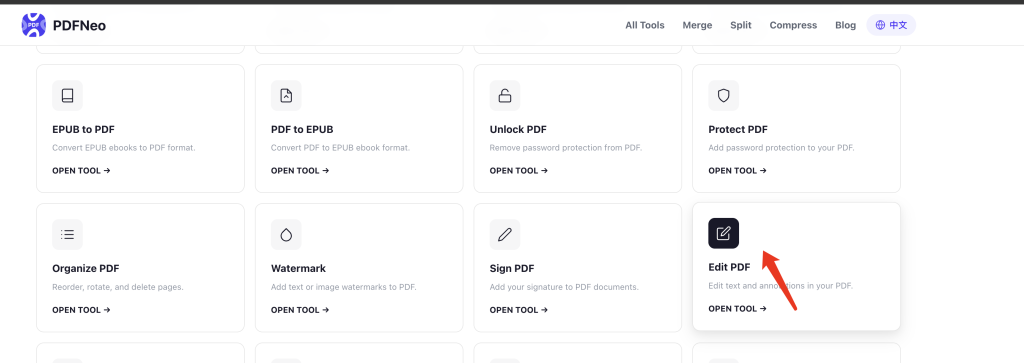
This isn’t a full PDF editor — you can’t modify existing text or formatting. But it handles the most common need: putting text onto a PDF.
How to add text to a PDF
1. Open the tool and upload your PDF
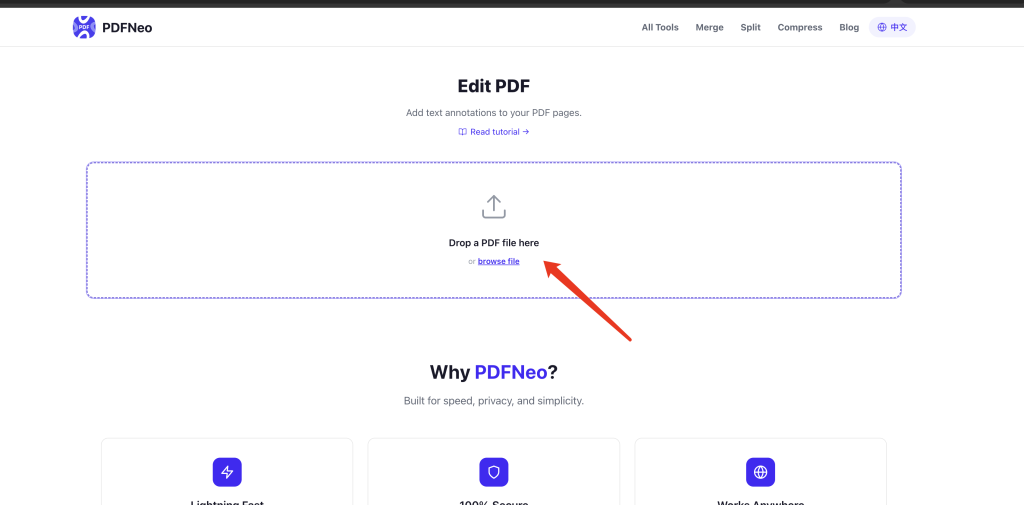
Go to PDFNeo Edit PDF. Drag in your PDF or click to browse. Once uploaded, the PDF renders on a canvas.
2. Enter your text
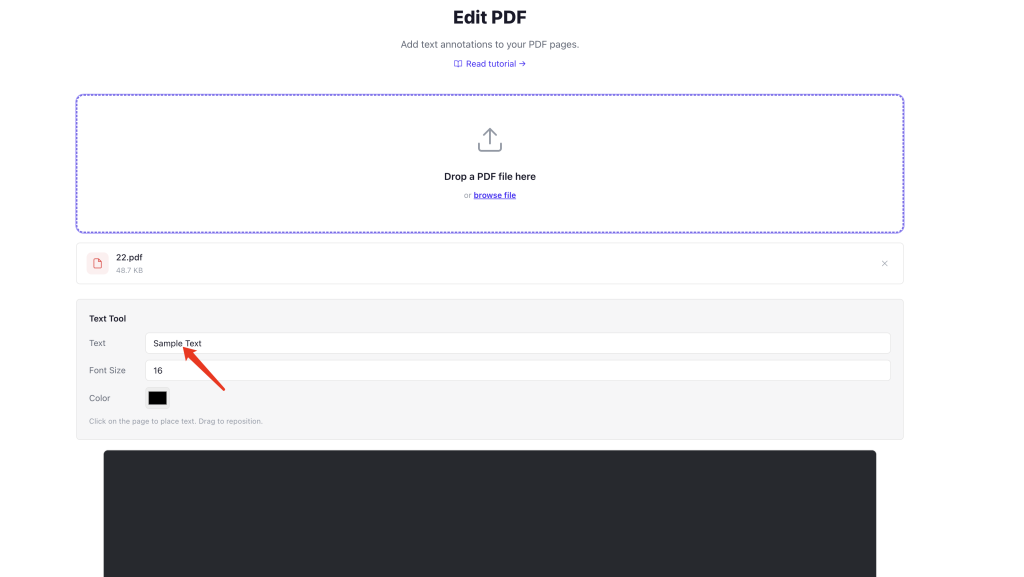
Type what you want to add in the “Text” input field. A name, a date, a comment, form data — whatever you need.
3. Adjust font size and color
- Font Size — default is 16, adjustable from 8 to 72
- Color — default is black, click the color box to pick something else
4. Click on the page to place text
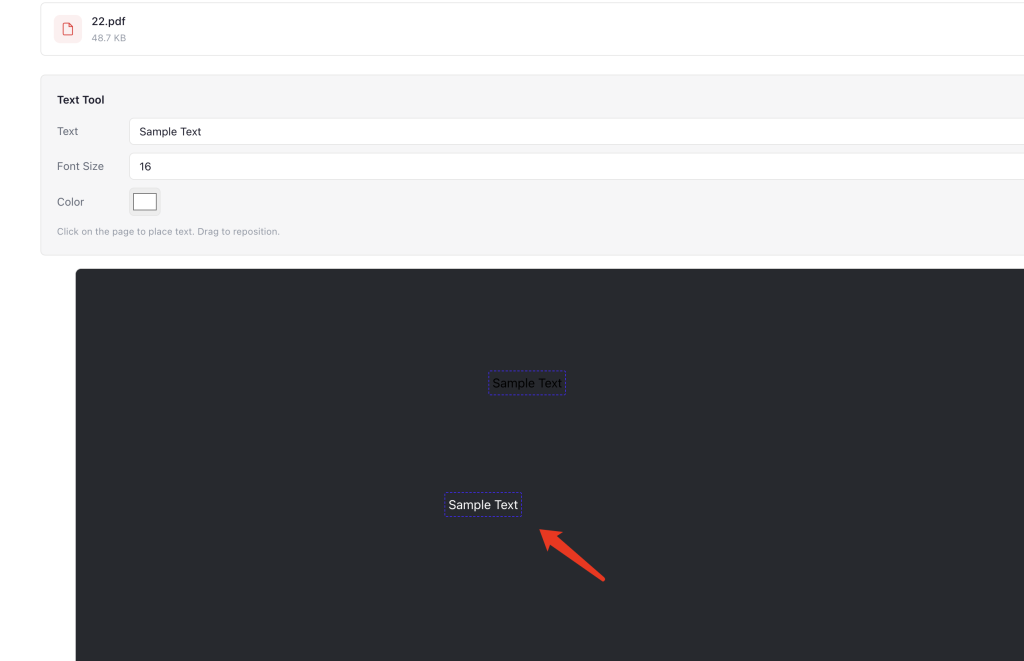
Click anywhere on the PDF page where you want the text to appear. It shows up right where you clicked. Wrong spot? Just drag it to the right position.
5. Navigate pages (if needed)
If the PDF has multiple pages, use the “Prev / Next” buttons at the bottom to switch between them. You can add text to each page independently.

6. Click “Save Edited PDF” and download
When you’re done adding everything, hit the button. A new PDF is generated for download. Your original file stays untouched.
What this “edit” can and can’t do
What it can do: Add new text annotations to PDF pages at any position, with adjustable font size and color.
What it can’t do: Modify existing text content, fonts, sizes, or colors in the PDF. You also can’t delete or move original elements.
If you need to change existing content, the right approach is to convert the PDF to Word first, make your edits, then convert back. Use PDF to Word for that.
When you’d actually need this
Fill PDF forms — the form is in PDF and you can’t type in it? Add text at the right spots.
Add comments — reviewing a document and need to leave notes? Click and type.
Add dates and names — put a signing date at the bottom of a contract. Pair it with the sign tool for a complete workflow.
Highlight areas — add labels like “Sign here” or “Note this section” directly on the page.
Fill in missing info — forgot something on a form? Add it without regenerating the whole PDF.
How many text annotations can I add?
No limit. Add as many as you need, each with different font sizes and colors. Save them all together when you’re done.
Can I edit a text annotation after placing it?
Before you click “Save,” you can drag annotations to reposition them. But the text content, font size, and color need to be set before placing — once on the page, you can’t change an annotation’s properties individually. You’d need to delete it and add a new one.
Is it safe? Where does my file go?
Everything runs locally in your browser. Your PDF never gets uploaded. All annotations are rendered and the file is generated on your device. Close the tab and nothing is stored.
Ready to add text to your PDF? Open PDFNeo Edit PDF, upload, click to place text, adjust, download. No expensive PDF editor needed.
More PDF tools
- Sign PDF — Draw your signature on a PDF
- Watermark PDF — Add text or image watermarks
- PDF to Word — Need to change existing content? Convert first
- Protect PDF — Add password protection after editing
- Organize PDF — Reorder, rotate, and delete pages